 In visual analytics, data interaction can be as important data visualization. This tutorial is about adding interactivity to Tableau visualizations, specifically using Filters and Parameters. Filters Filters, you guessed it, let you filter data. In Tableau, they can be either static or interactive. An example of a static filter would be a condition that was set in worksheet mode to display a certain subset of the total data (eg. only.]]> In visual analytics, data interaction can be as important data visualization. This tutorial is about adding interactivity to Tableau visualizations, specifically using Filters and Parameters.
Filters
Filters, you guessed it, let you filter data. In Tableau, they can be either static or interactive. An example of a static filter would be a condition that was set in worksheet mode to display a certain subset of the total data (eg. only sales for certain provinces, or certain product categories). Static filters can be revised in the worksheet by going back to the original filter dialog, but can’t be changed in dashboard mode or from Tableau Public. In other words, they are not interactive by default. You can make them interactive, however, by choosing Show Quick Filter to add a filter list to the worksheet and dashboard.
Parameters
Parameters are commonly used to create additional types of interactive filters, but they are not, in themselves, filters. Rather, they are variables. As such, they aren’t really useful on their own; they have to be part of something else, such as an equation, a filter, a reference line, a calculated field, or what Tableau calls parameter controls (sliders, selection menus and type-in fields).
Like filters, parameters can be either static or interactive. An example of a static parameter would be a fixed sales target that is used in a bar graph to colour sales numbers that meet the target one colour, and those that don’t, another. An example of an interactive parameter would be a parameter control slider on the dashboard that lets the user adjust the sales target up or down and see the resulting colour change in the visualization.
As an interaction designer, I think of sliders, selection menus and type-in fields in terms of interaction. Tableau, on the other hand, is more concerned with the underlying math, formulas and analysis. As a result, the workflow in Tableau for creating interactivity starts with the parameters and calculated field formulas first, and adds the interactive feature to the UI last. Secondly, interactive features are called “Parameter Controls”, suggesting that you are interacting with the underlying formula more so than the visualization itself.
Personally, I find Tableau’s workflow is a bit counter intuitive. Here’s how I would do it: add an Interactions Card to the standard worksheet UI. Populate the card with icons for sliders, selection menus, radio buttons, toggle switches, zoom tools, selection tools, reference lines etc. This way, the user can simply drag an interaction icon to a visualization, or drag a measure or dimension to the interaction icon first; and then establish the parameters of the tool second. I feel like this drag and drop approach would be intuitive and still consistent with Tableau’s other workflows. Anyway, that’s my two cents’, for what it’s worth.)
Tutorial
The following examples illustrate different ways to use Filters and Parameters. Once again, I’m using the SuperstoreSales data found here
. Open a new worksheet tab for the first two examples because we’ll come back to them in the second half of the tutorial.
Filters
Probably the most familiar and straightforward filter type is the simple filter.
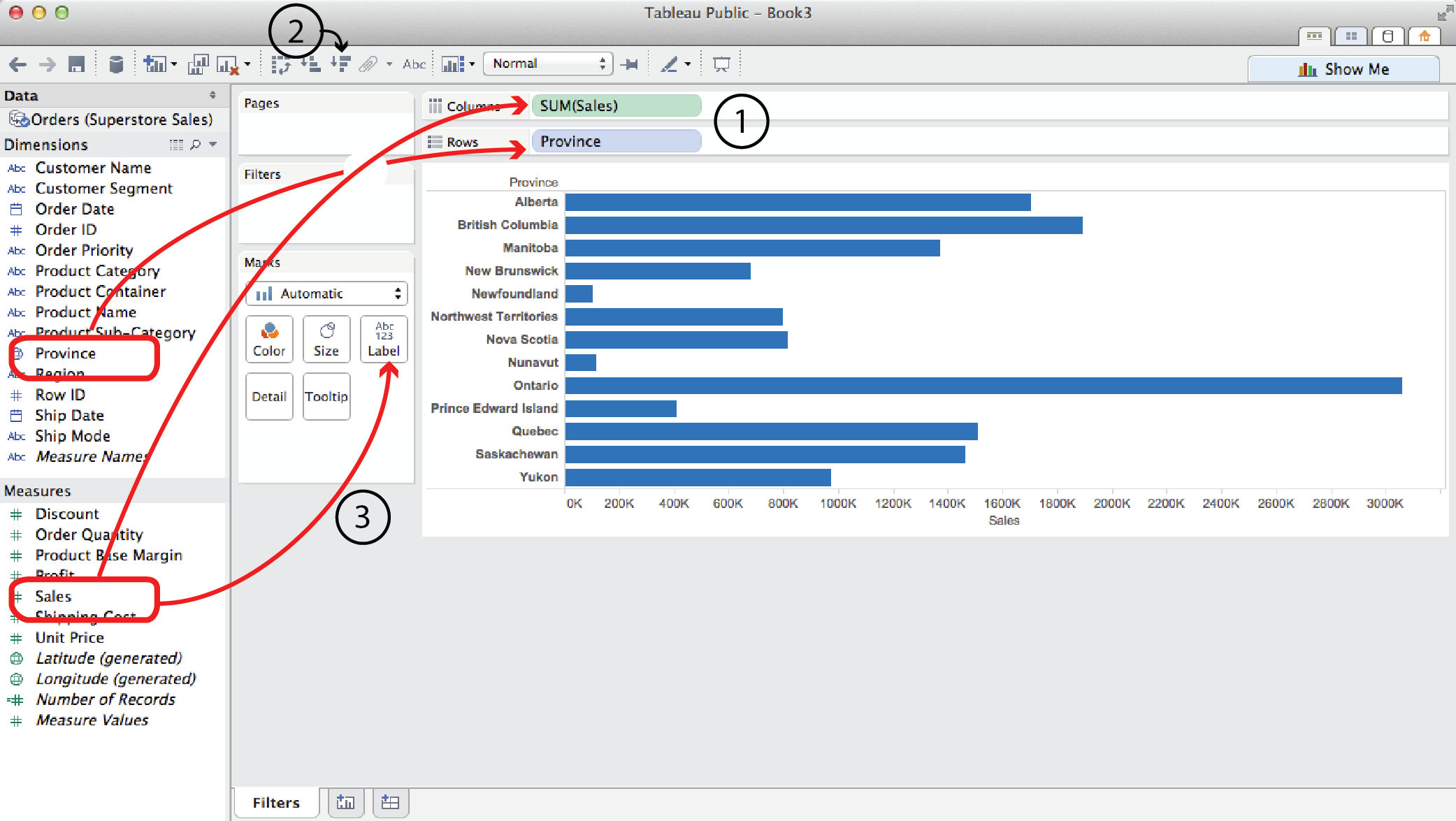
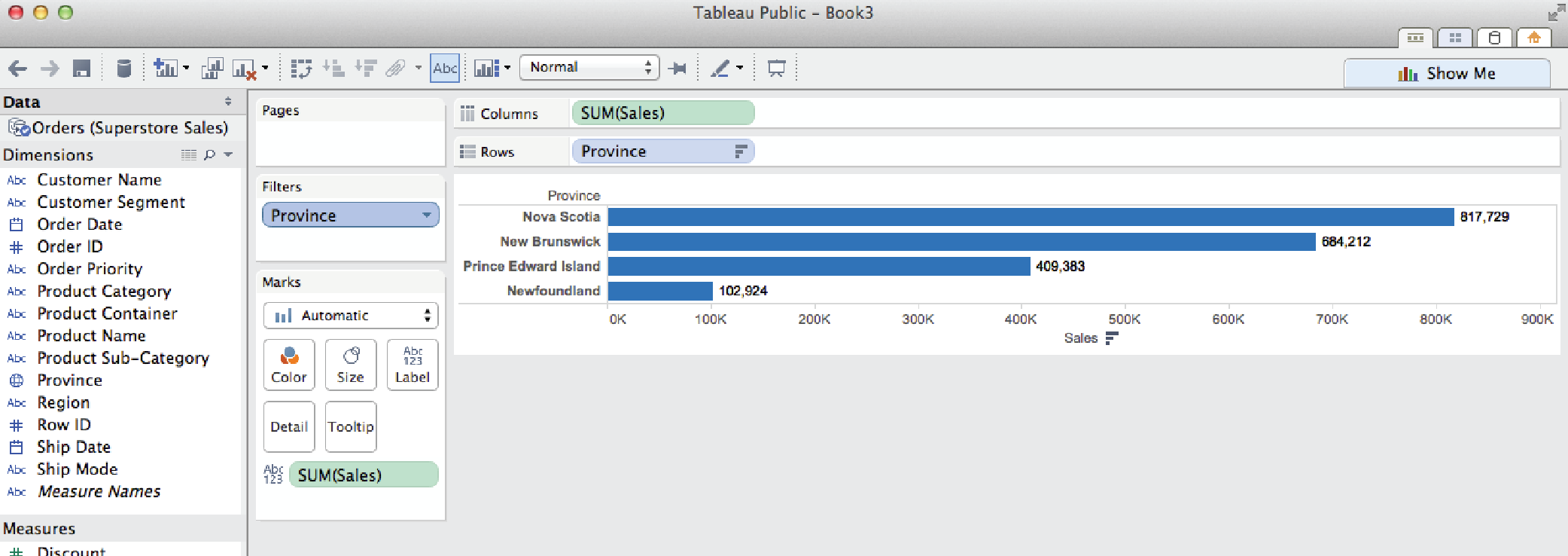
- Say you wanted to look at Sales by Province. You would drag Sales to the Columns shelf and Province to the Rows shelf.
- To sort them biggest to smallest, click on a Quick Sort button.
- To add Sales labels to the bars, drag Sales from the Measures list (not the Columns shelf) to Label in the Marks card.
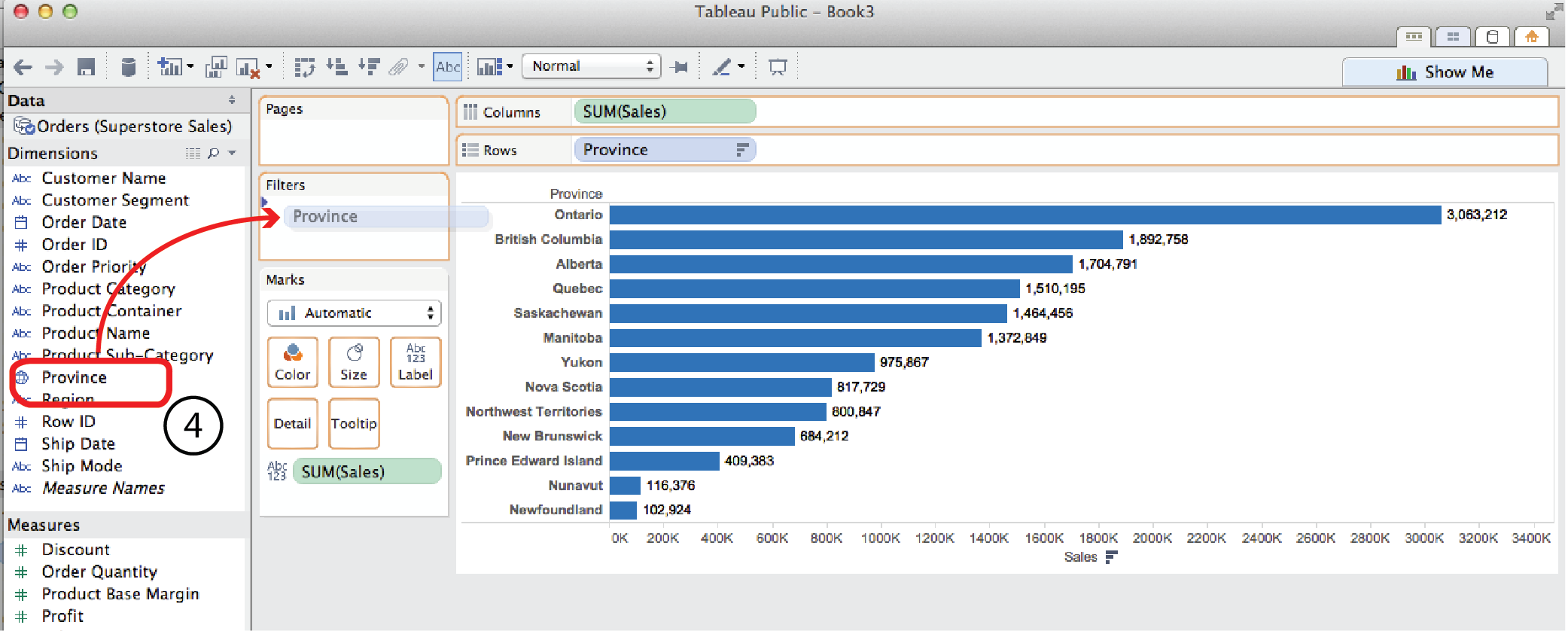
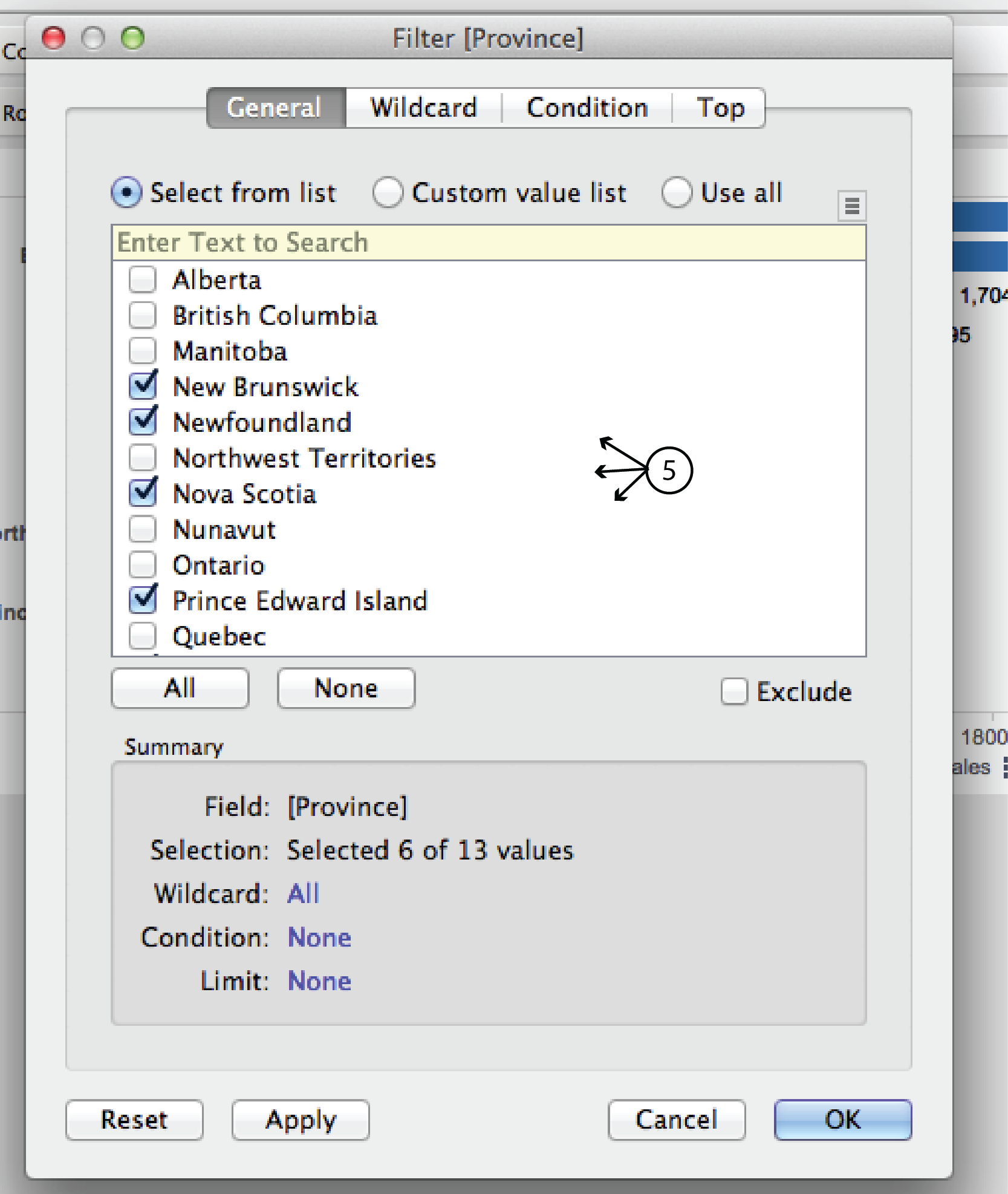
- Now if you wanted to filter the results to only show the Maritime Provinces, you could drag Province from the Dimensions menu to the Filters card to open the Filters dialog.
- In the General tab of the dialog, uncheck the non Maritime provinces and click OK. The result is just the four Maritime provinces. Pretty straight forward.
Filter by top (or bottom)
Open a new worksheet tab. Say you wanted to look at Sales for every individual product the Superstore sells.
- You could drag Sales to the Columns shelf and Product Name to the Rows shelf. This would produce a horizontal bar chart with over a thousand bars, which is pretty unwieldy.
- Clicking the Sort Descending button and dragging Sales to the Label Card, as in the previous example, helps clarify things but, nevertheless, the chart is pretty long and unweildy.
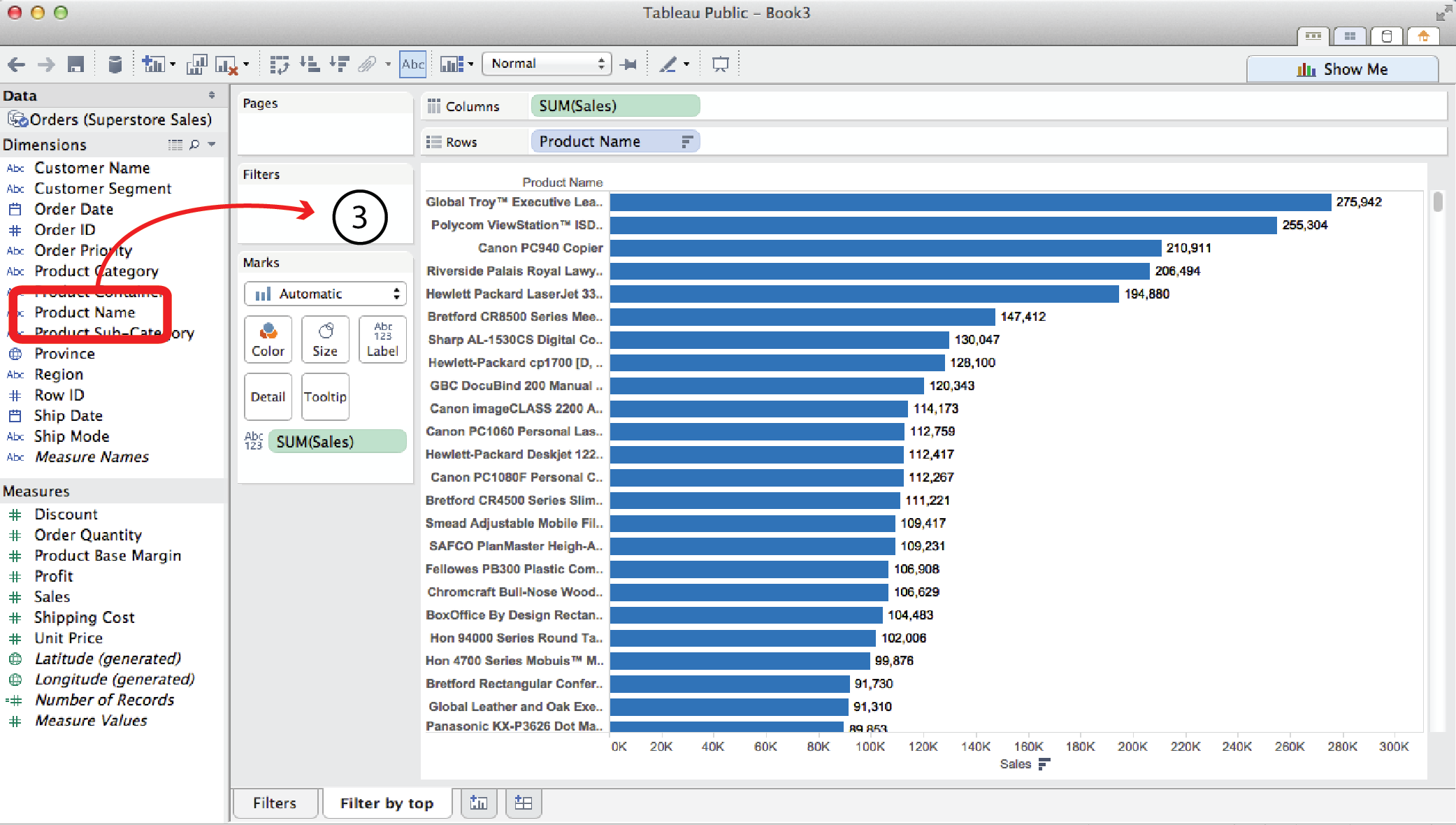
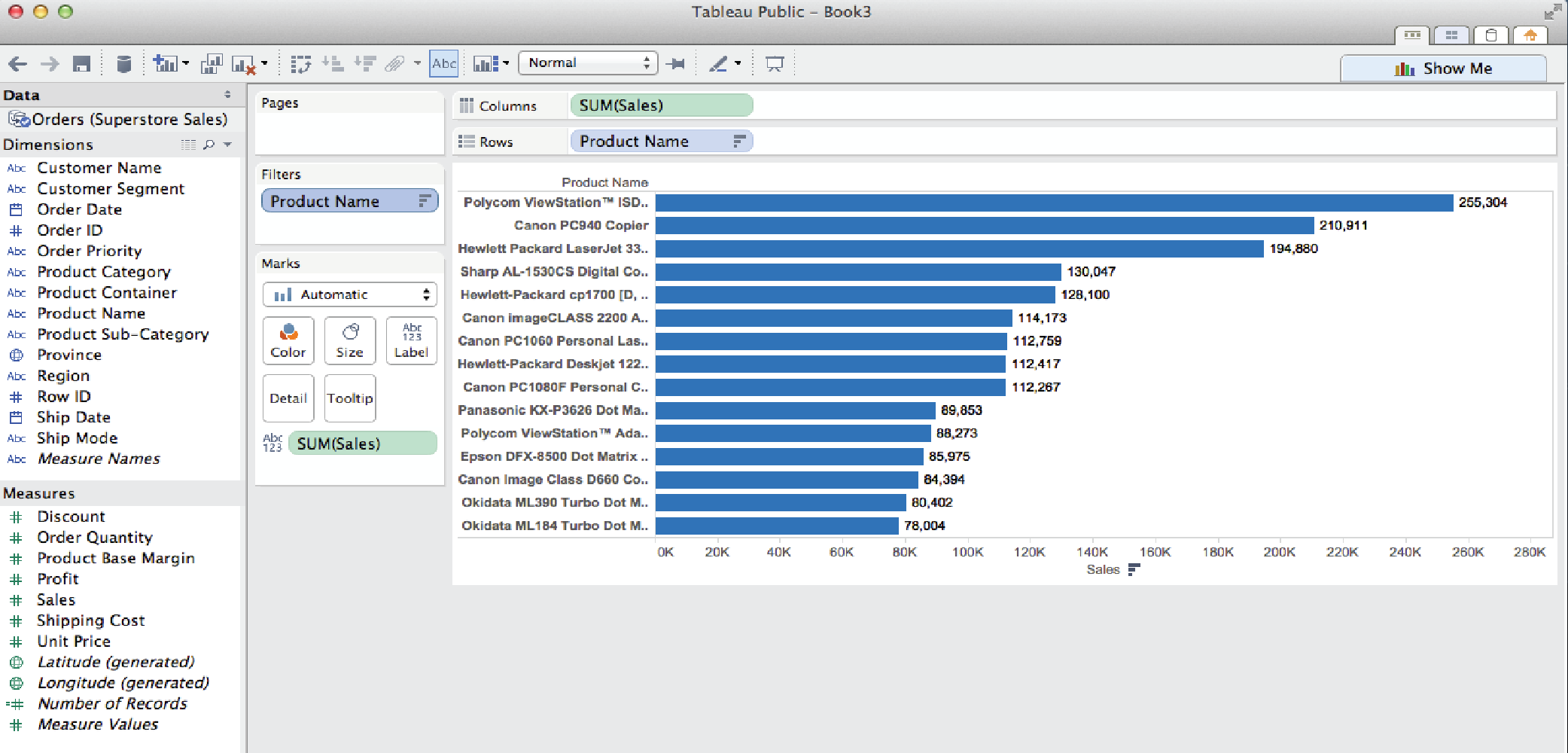
- Often in visual analytics, you are most interested in what is happening at the extreme conditions, moreso than the middle. This is where Filter by Top (or Bottom) comes in handy. It might be useful to just look at the top (or bottom) 15 sellers. To do so, Drag Product Name from the Dimensions menu to the Filters card. Again, this opens the Filter dialog.
- Choose the Top tab at the top of the dialog. Select the By field radio button. Select Top or Bottom from the menu below it. Then enter 15 in the field to the right. For this example, we’ll leave Sales and Sum in the row below as is. But obviously, you could choose any other Measure (Profit, Discount, Shipping Date etc.) or measure type (average, minimum, median etc.) that you were interested in. Finally, click OK at the bottom.
Filter by top and condition
In a slightly more complex scenario, what if you wanted to look at the top 15 sellers in the Technology Product Category?
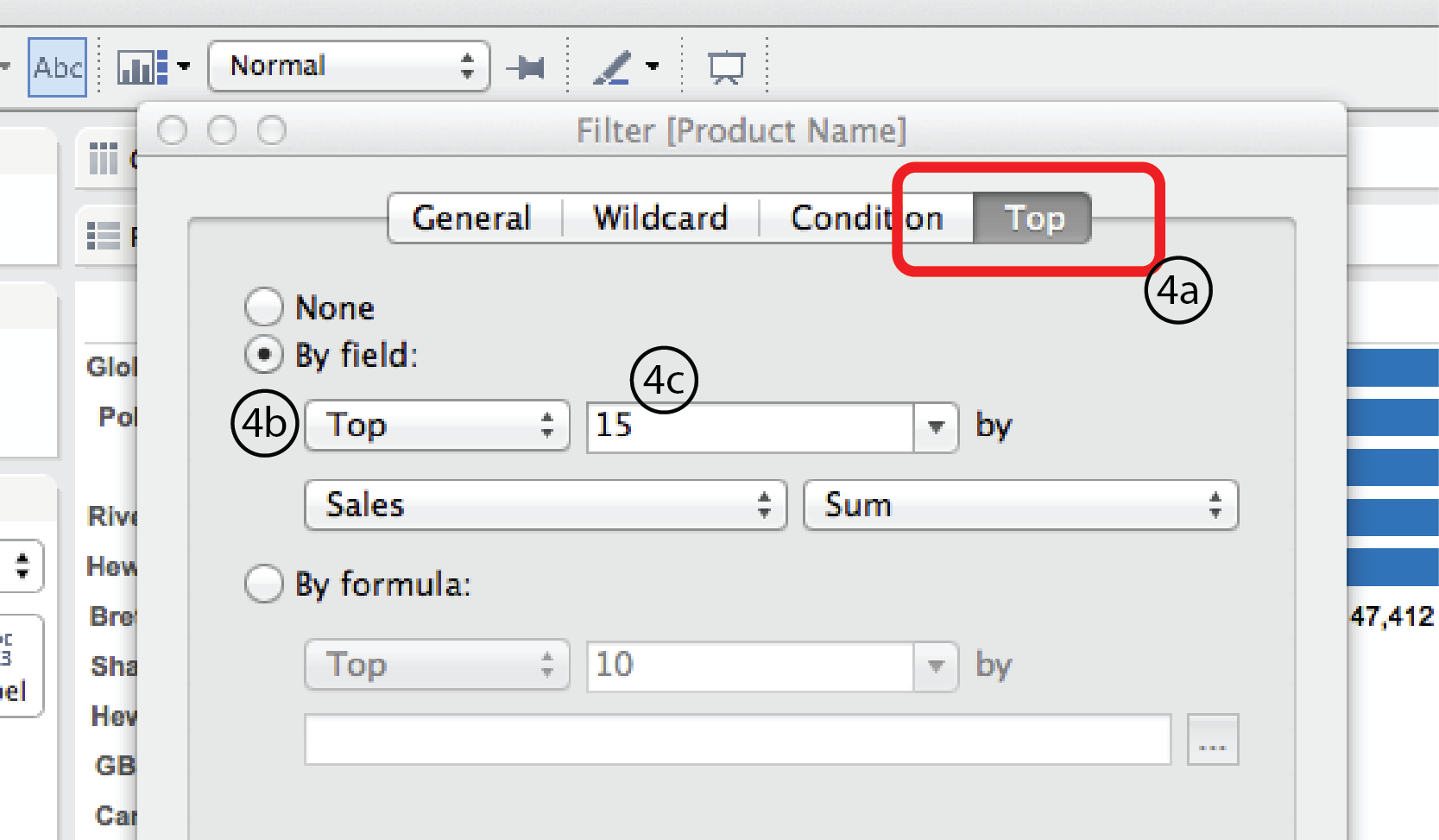
- Using the same worksheet as previously, right click on the Product Name filter and choose Filter to open the Filter dialog once again. As you did last time, open the Top tab. This time, select the By formula radio button. Choose Top from the Top/Bottom menu list below and enter 15 into the space to the right. If you are really good with Tableau Calculated Field syntax, you could enter a formula directly into the space below. The rest of us will click on the “…” button to the right to open the Calculated Field dialog.
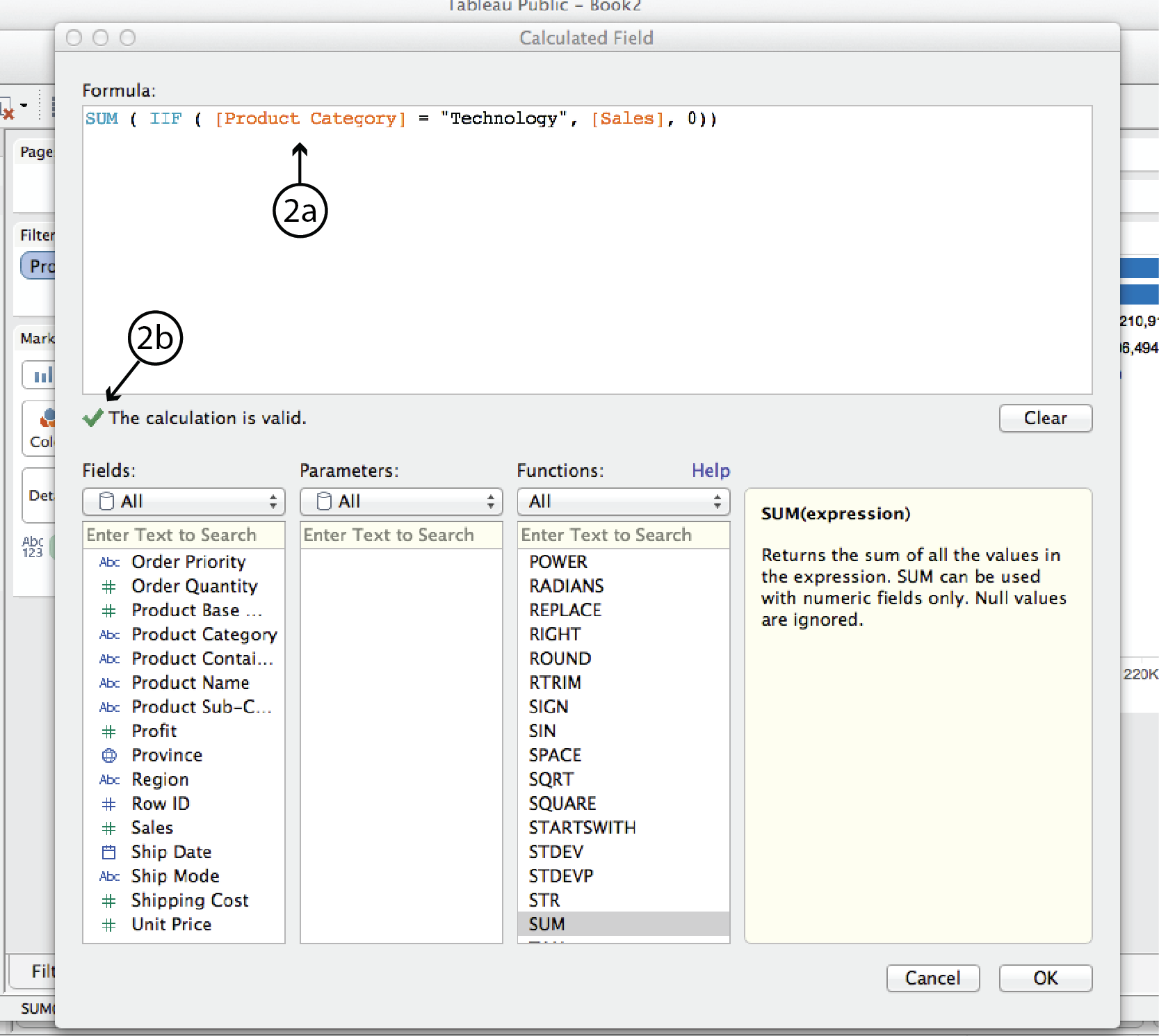
- Enter tthe following formula in the space at the top. (Hint: double clicking on the Dimension and Measure names in the Fields menu simplifies typing in the different types of brackets.):
SUM( IIF ( [Product Category] = “Technology”, [Sales], 0 ))In plain english, this formula means: for each product order (i.e. row in the dataset), IF the product category is Technology, THEN add the Sales amount; if not, add zero. Tableau will confirm that your syntax is correct with a green check mark or tell you there’s something wrong with a red X. Assuming the syntax is correct, click Apply, then OK at the bottom of the CF dialog. Then click OK again at the bottom of the Filter dialog.
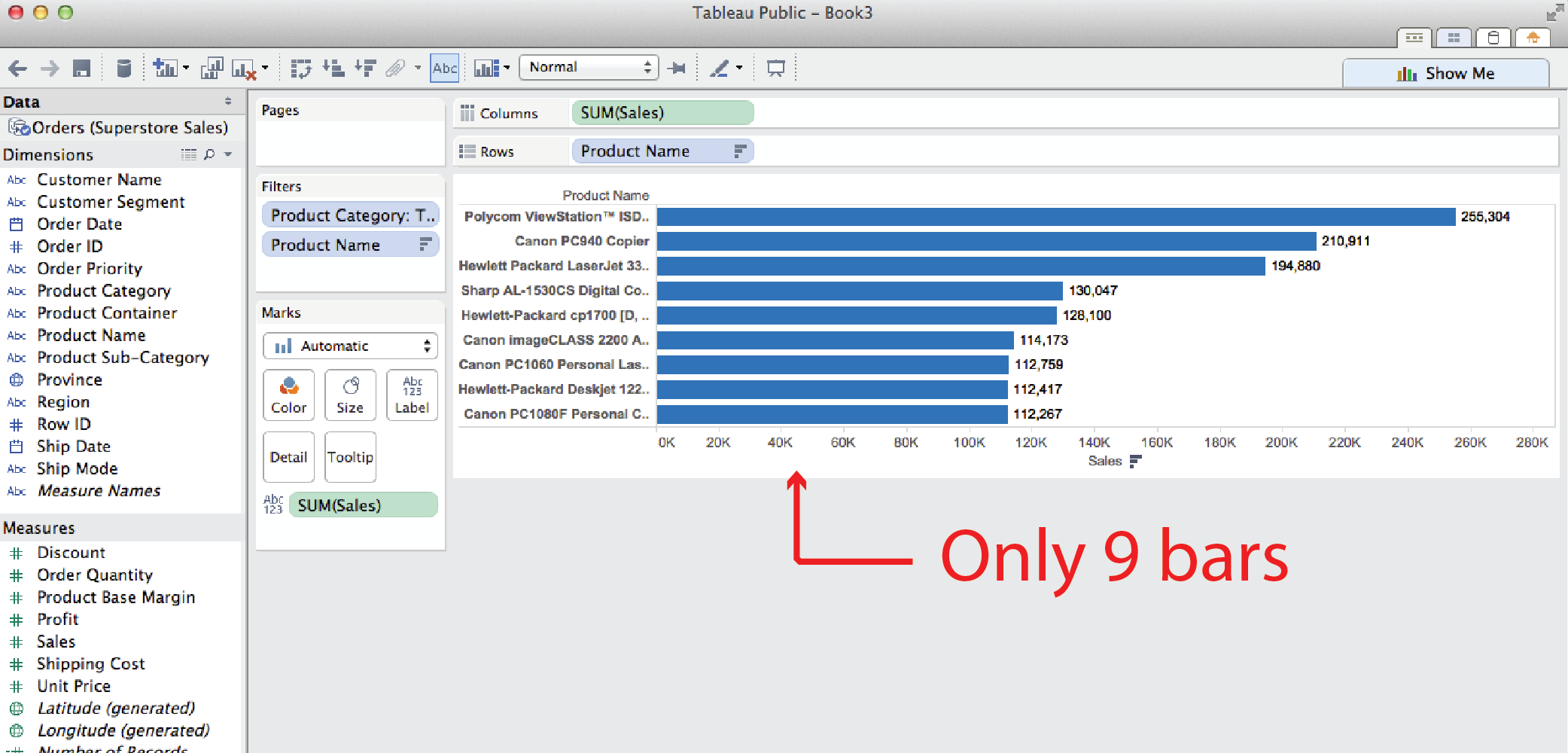
- Note: you might think that you could do the same thing more easily by filtering by Product Category first so that only Technology is displayed, and then using a second Filter by Top filter to display the top 15 sellers. But this method yields different results, as you can see below. It returns only nine products, even though we filtered for the top 15. The reason for this is that Tableau interprets two filters such as these to mean: display those products that are top 15 sellers AND in the technology product category. In other words, some of the other top sellers were in other categories and, therefore, were not displayed.
Parameters
The examples so far have used static filters (i.e. fixed, under the hood). They can be revised in a worksheet by reopening the Filters dialog and revising the filter, but they can not be adjusted or interacted with in a dashboard. The following examples illustrate how Parameters can be used to make them more interactive.
Add an interactive filter list
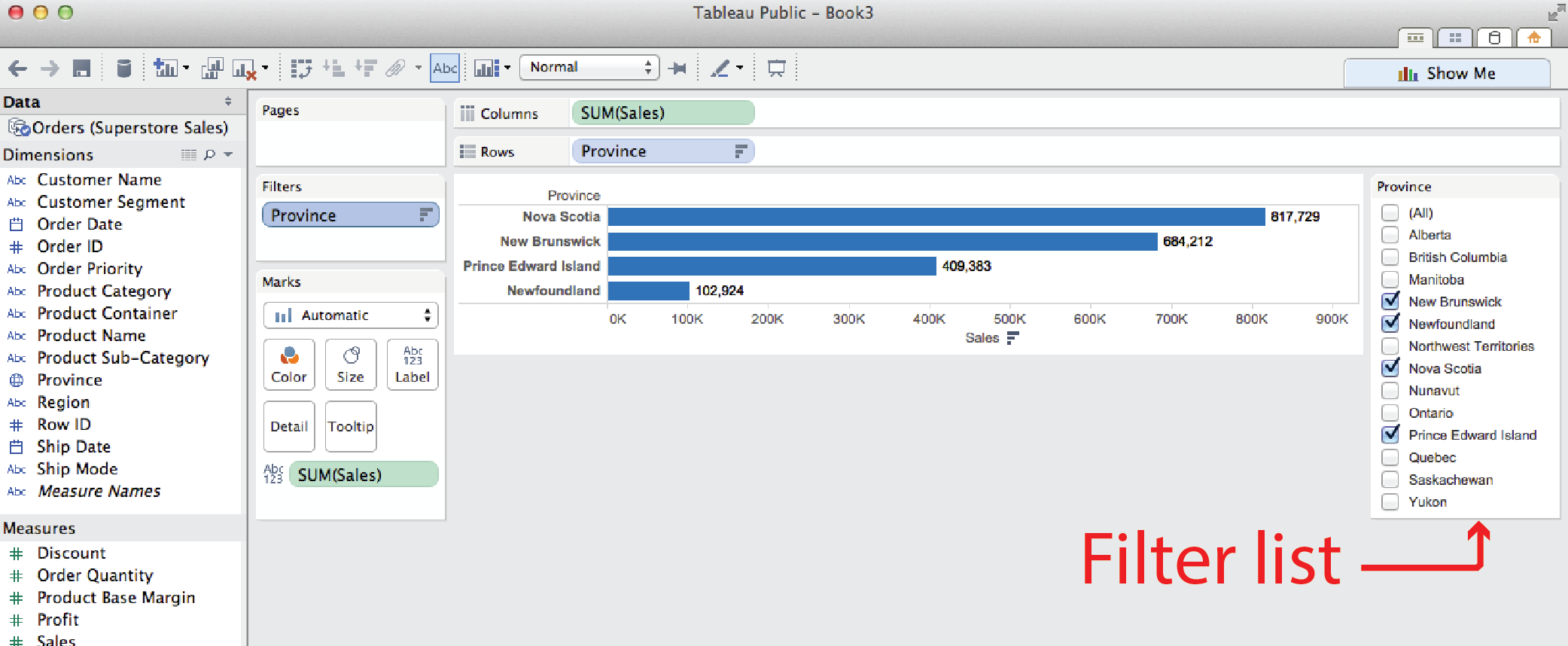
It doesn’t actually take a Parameter to make a filter list interactive. All you have to do is right click on the filter name in the Filters card and select Show Quick Filter. Tableau will add an interactive filter list to the worksheet.
Add a slider control
Using the Filter by top example, say you want to replace the fixed number of products to display (15) with a slider that lets user control how many top (or bottom) selling products to display. To do this you need to revise the original Product Name Filter from a fixed number (15) to a variable using a Parameter.
- Right click on the Product Name filter and choose Filter to open the filter dialog.
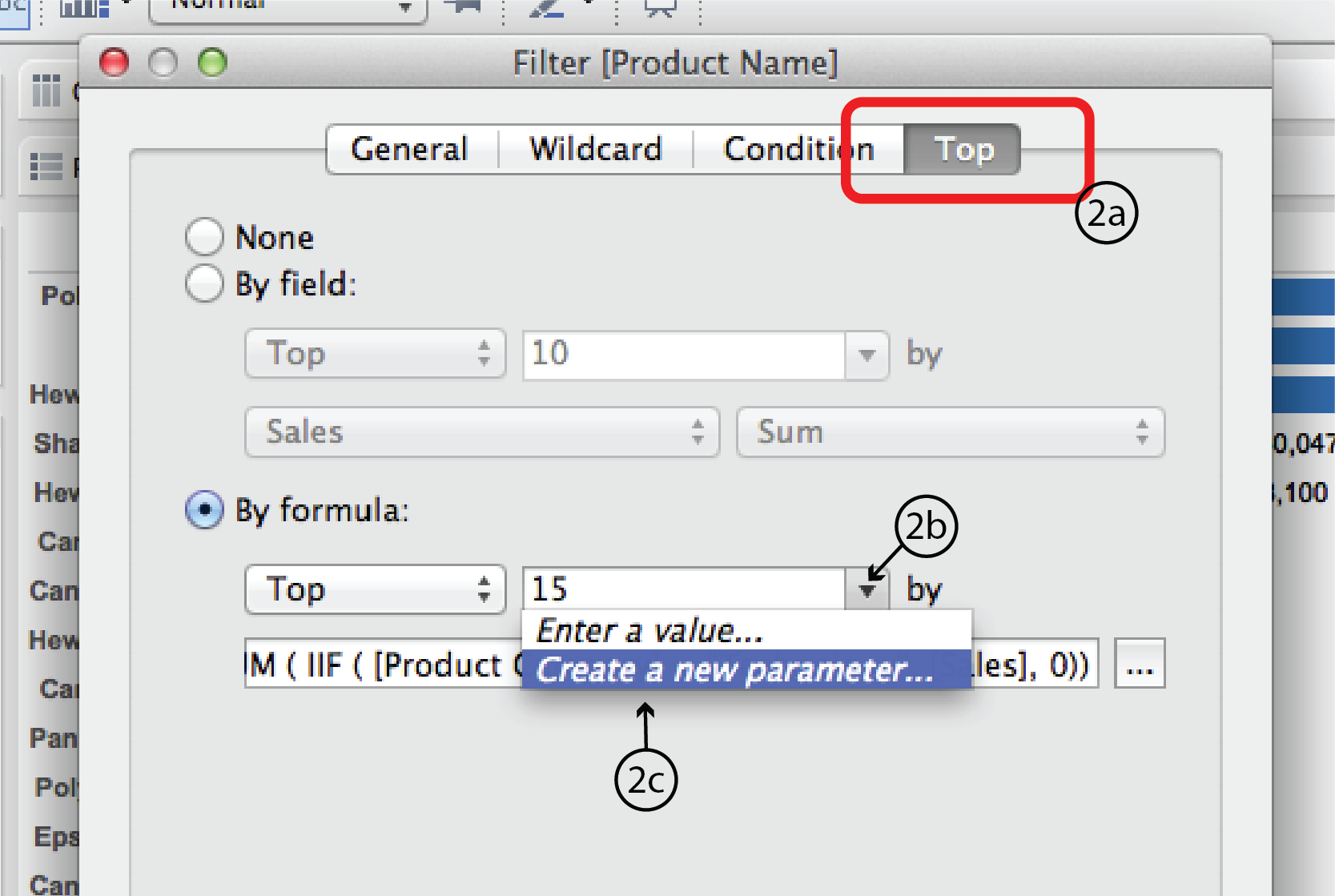
- Choose the Top tab and click on the little triangle to the right of the number 15 type-in field to expand the list of options. Select Create a New Parameter to open the Create Parameter dialog.
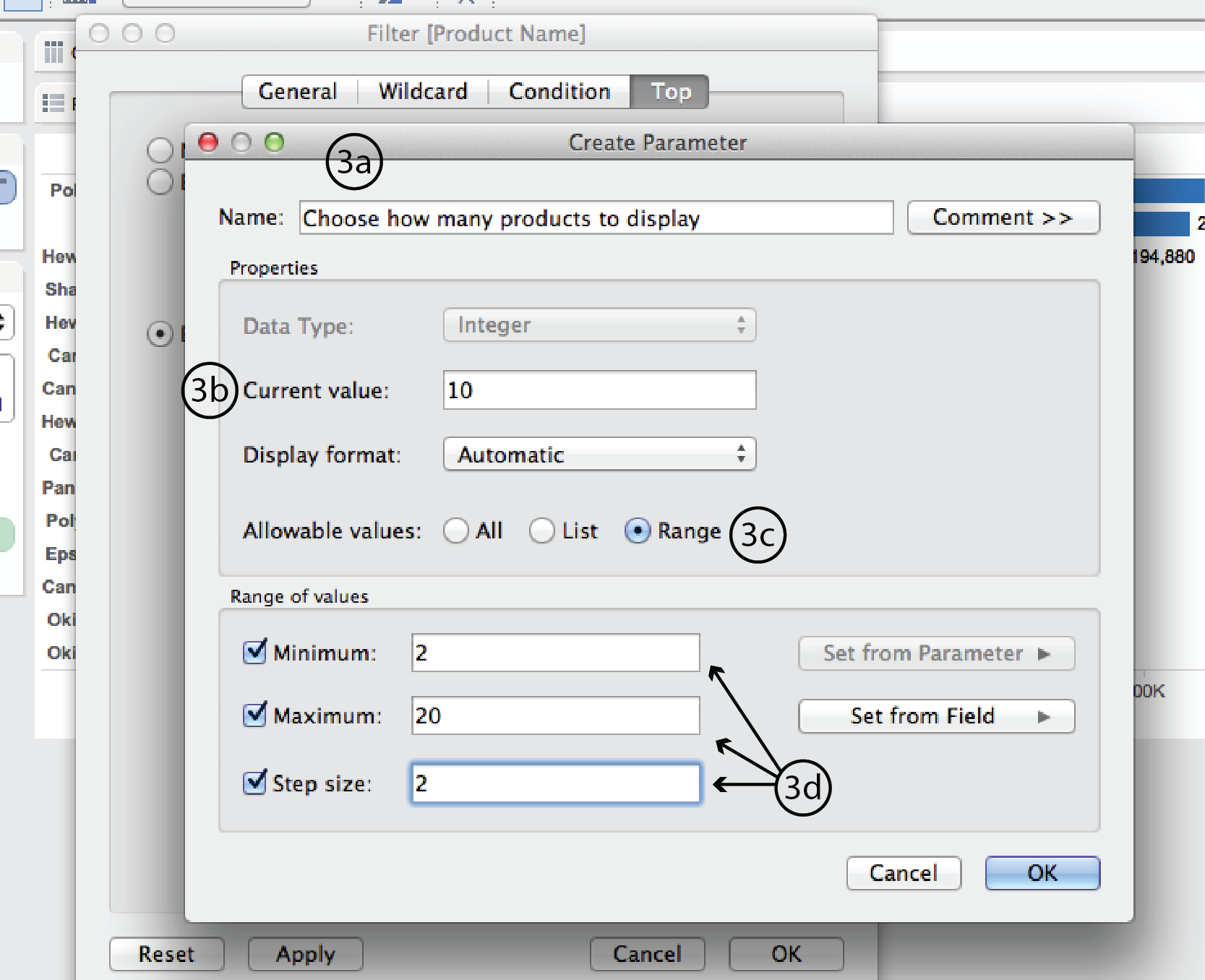
- In the Create Parameter dialog, enter a name such as “Choose how many products to display” at the top. Change Current value to 10. This will be the new default. Beside Allowable values, choose Range. Under Range of values, choose a minimum of 2, a maximum of 20 and a step size of 2. Then click Okay, and Okay again in the Filter dialog.
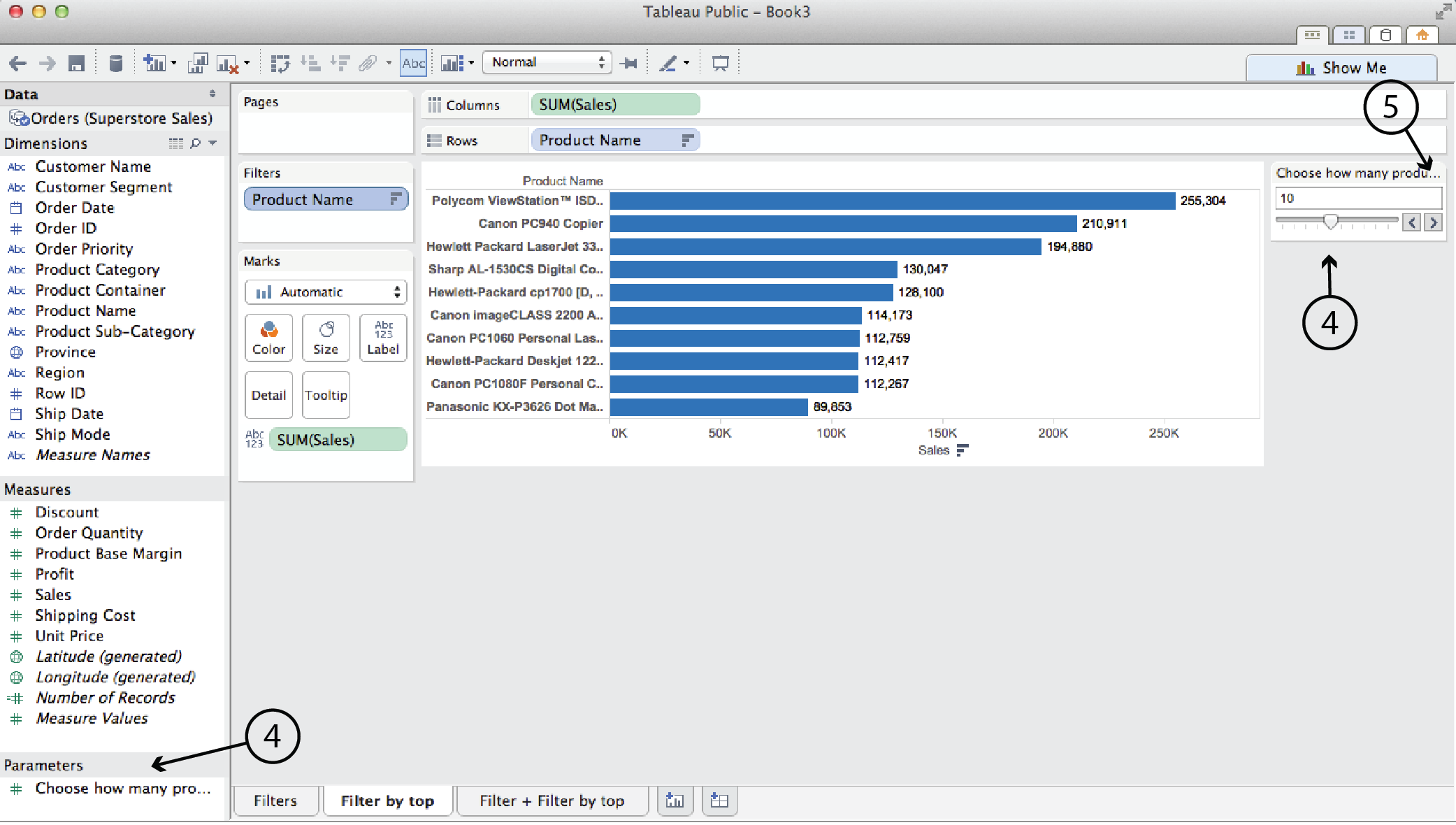
- In this case, Tableau automatically adds the slider into the worksheet. (It won’t always, though.) It also lists the Parameter in the left hand menu pane.
- You can click on the triangle in the top right corner of the parameter card to edit the title, parameter, slider etc.
Add a Reference line
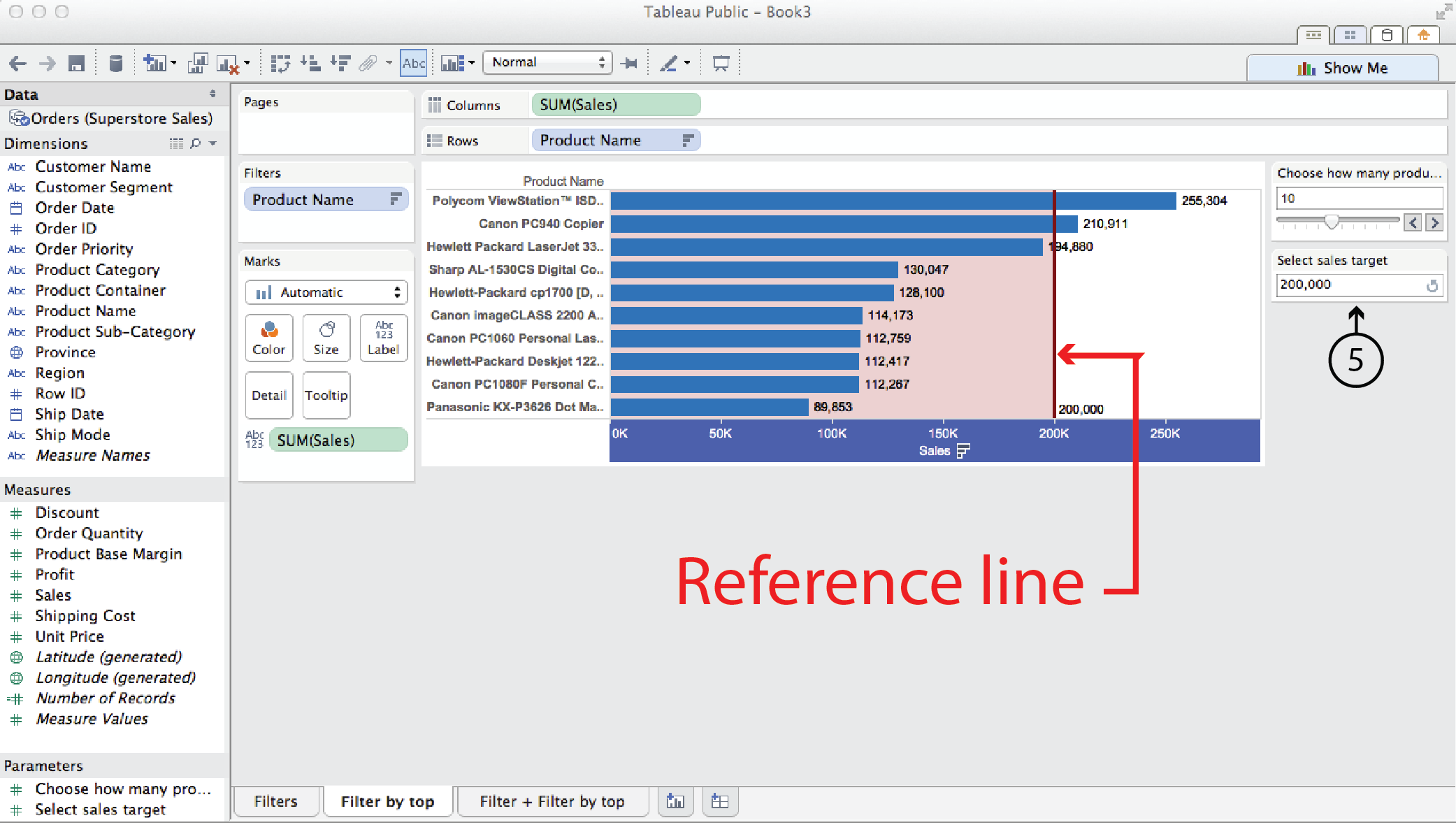
Use the same Filter by top technology sales example again. This time, say you wanted to add a Reference line that showed a sales target, and you wanted to make that reference line adjustable by the user.
- Right click on the horizontal axis and select Add Reference Line, Band or Box. This opens the ARLBorB dialog.
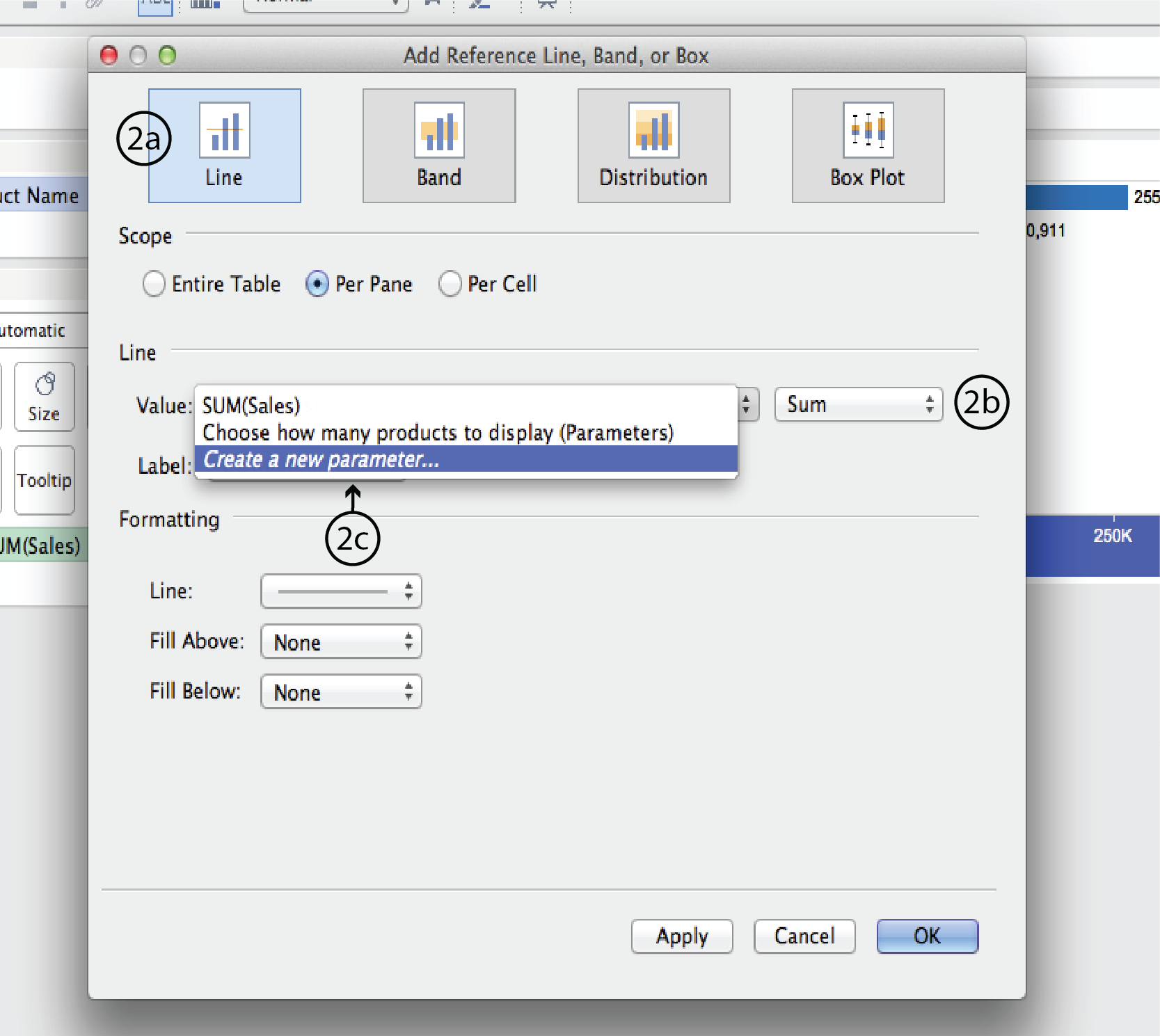
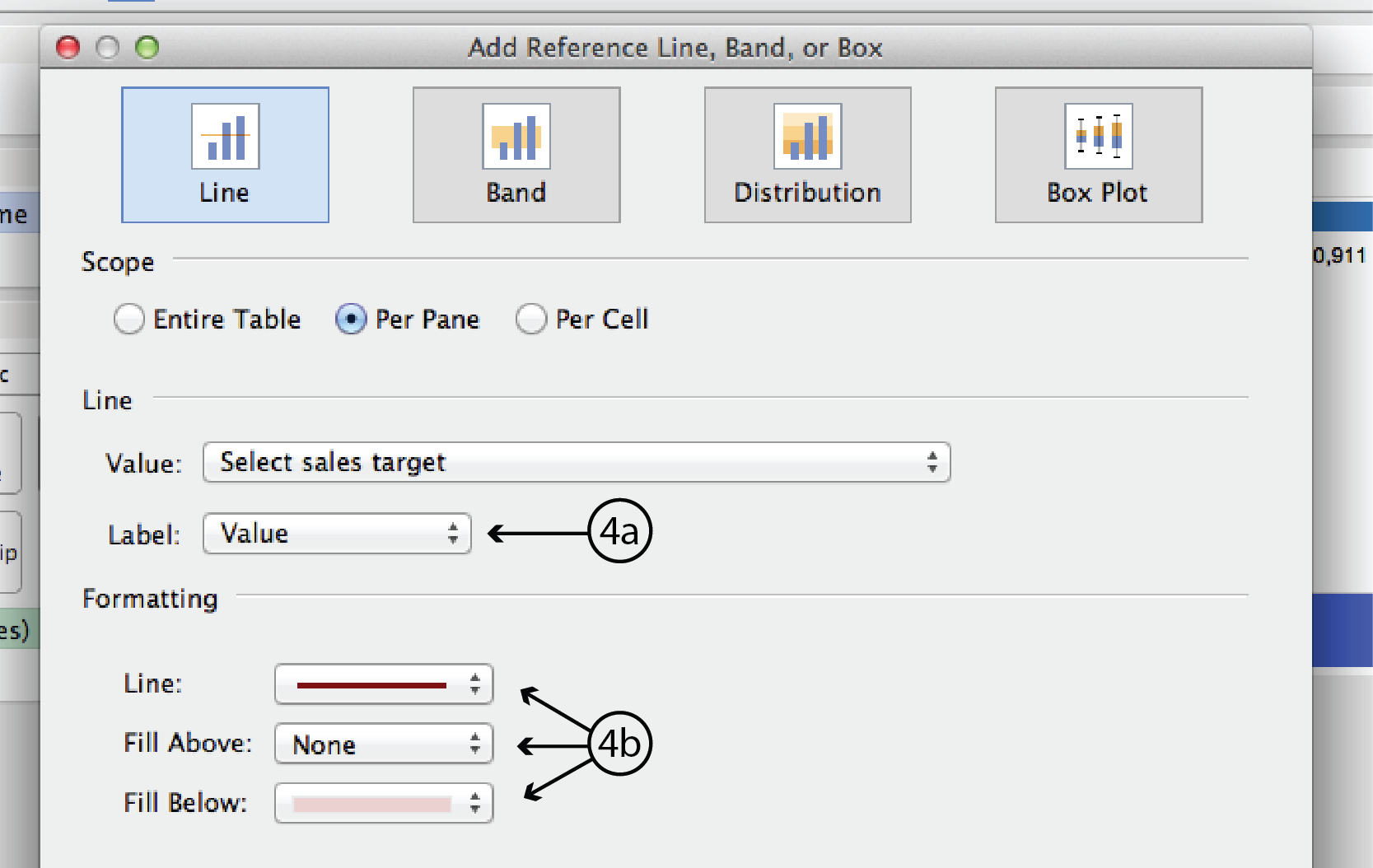
- In the ARLBorB dialog, choose Line type at the very top, if it isn’t already. Choose Sum rather than Average for the data type. Right click on the up/down arrows to the right of the Value field to expand the menu. Select Create a New Parameter to open the Create Paramete dialog.
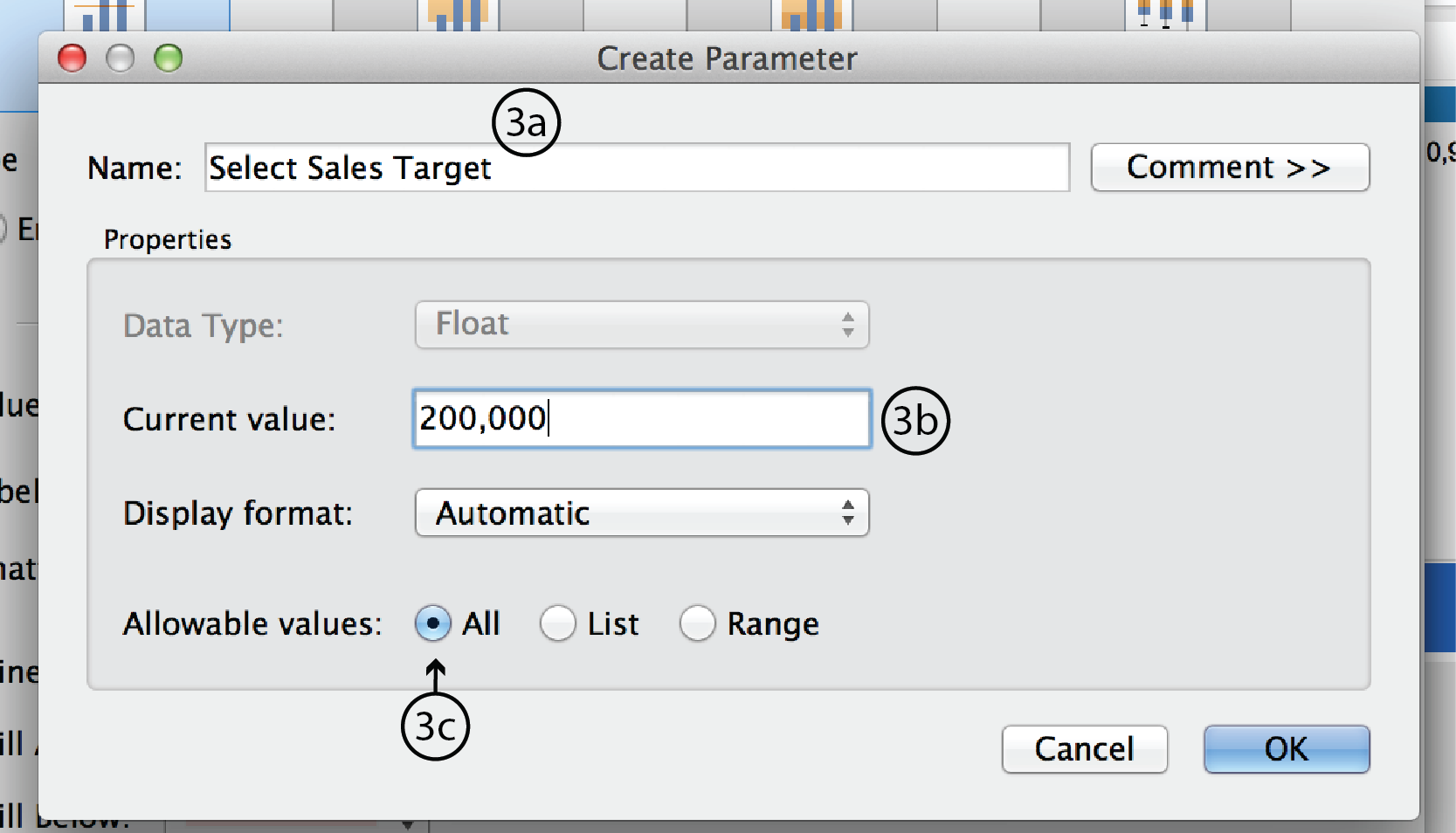
- In the Parameter dialog, enter a name such as Select Sales Target. Make Current value 200,000; this will be the default. Leave Display format as Automatic and Allowable values as All. Click OK to close the dialog.
- Back in the ARLBorB dialog, change Label to Value. This refers to the reference line’s label in the visualization. Under Formatting, change Line colour and Fill as you see fit. When you are ready hit Apply, then OK, or just OK.
- Again, Tableau automatically adds a Parameter Control to the worksheet. This time, it is a type-in field and it can’t be changed to a slider.

Parameter + CF (Big market/small market cutoff example)
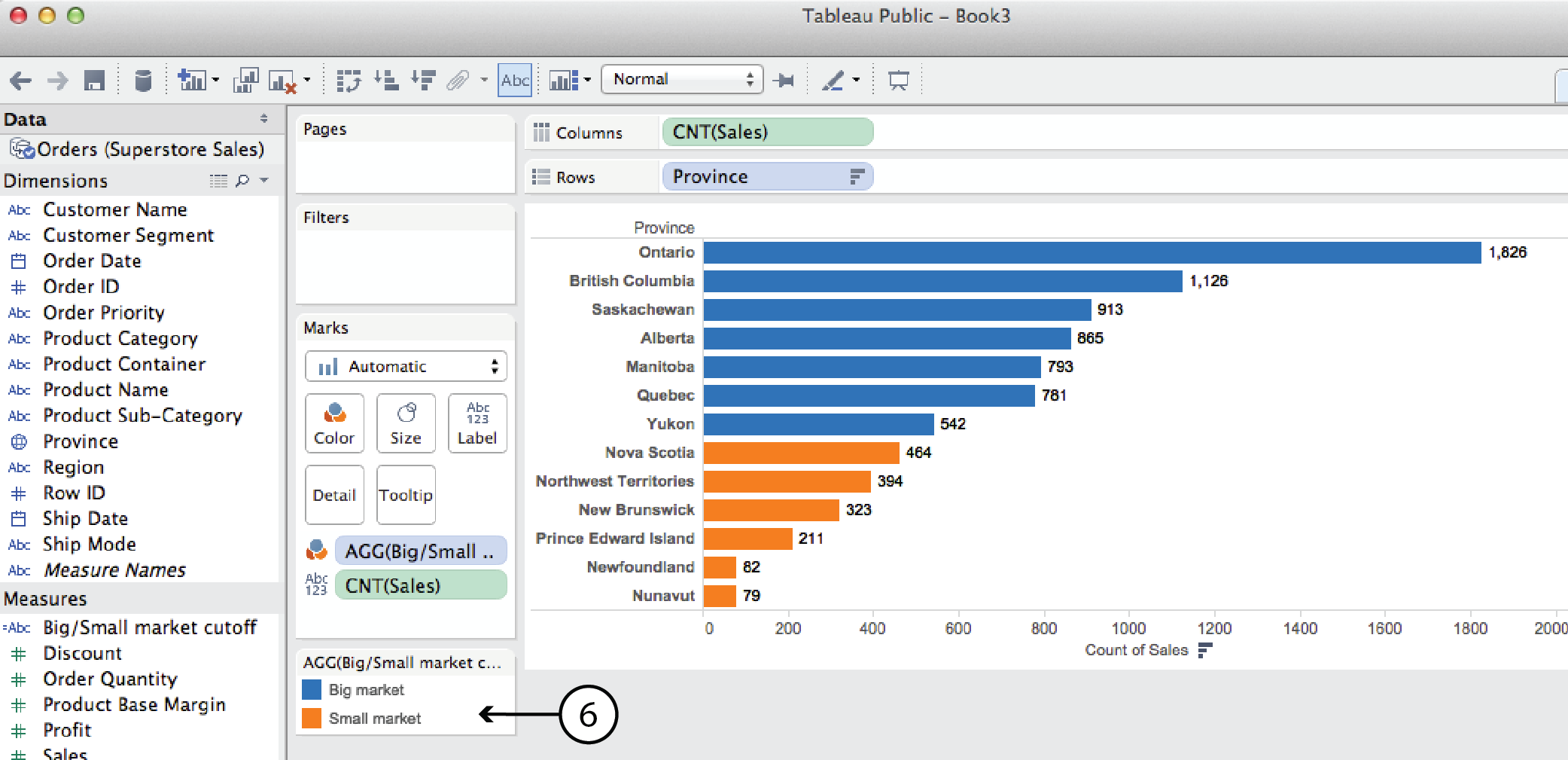
A parameter can also be used in a calculated field. For example, say you wanted to look at Sales by Province and categorize the provincial markets as either big or small depending on the number of sales. Since the big market/small market designation is not part of the original dataset, we have to use a Calculated Field to create it. In this case, lets look at the number of sales orders, as opposed to either tthe order quantity (i.e. 50 pens or 10 desks) or the sales value (i.e. dollar value).
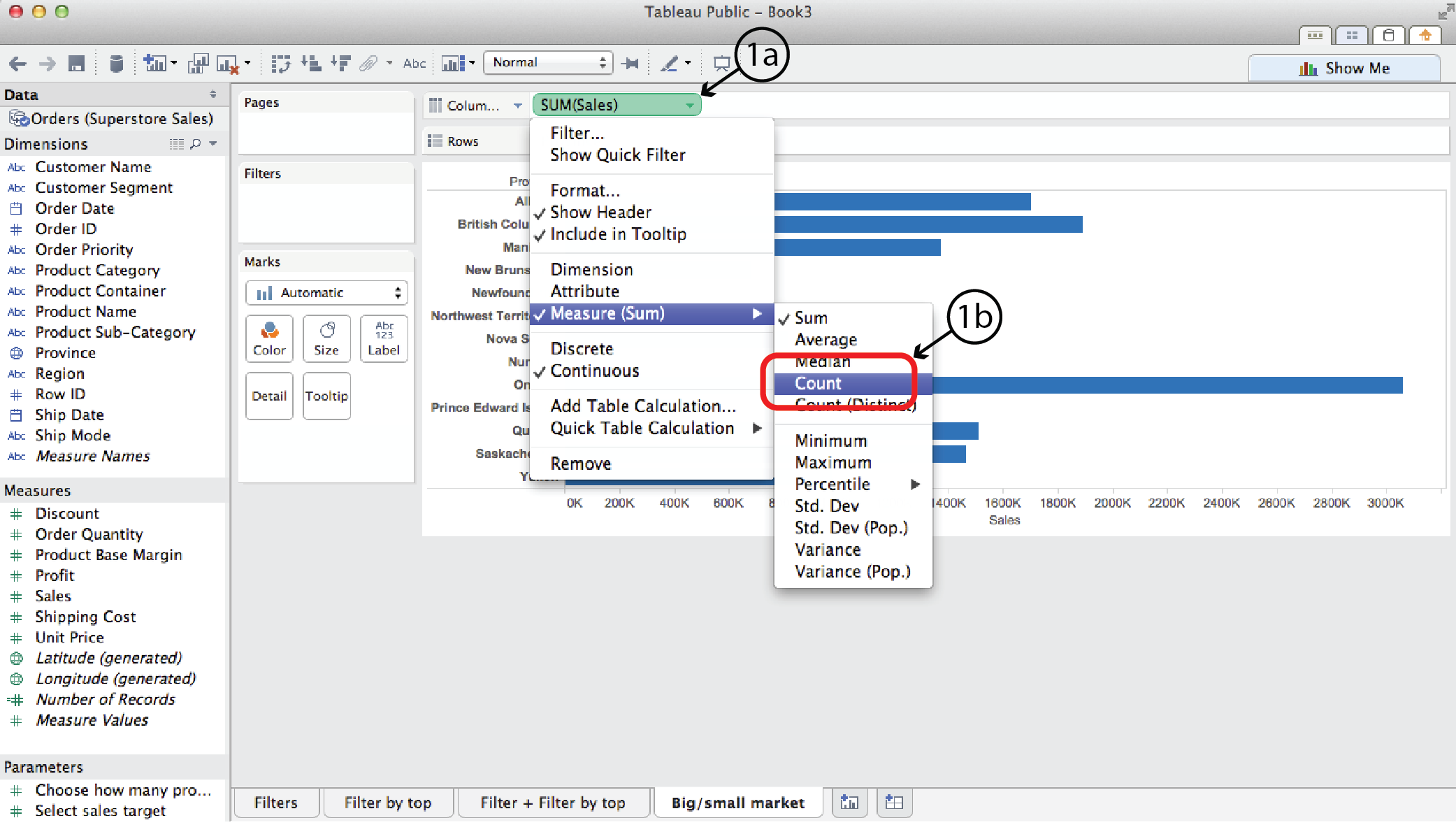
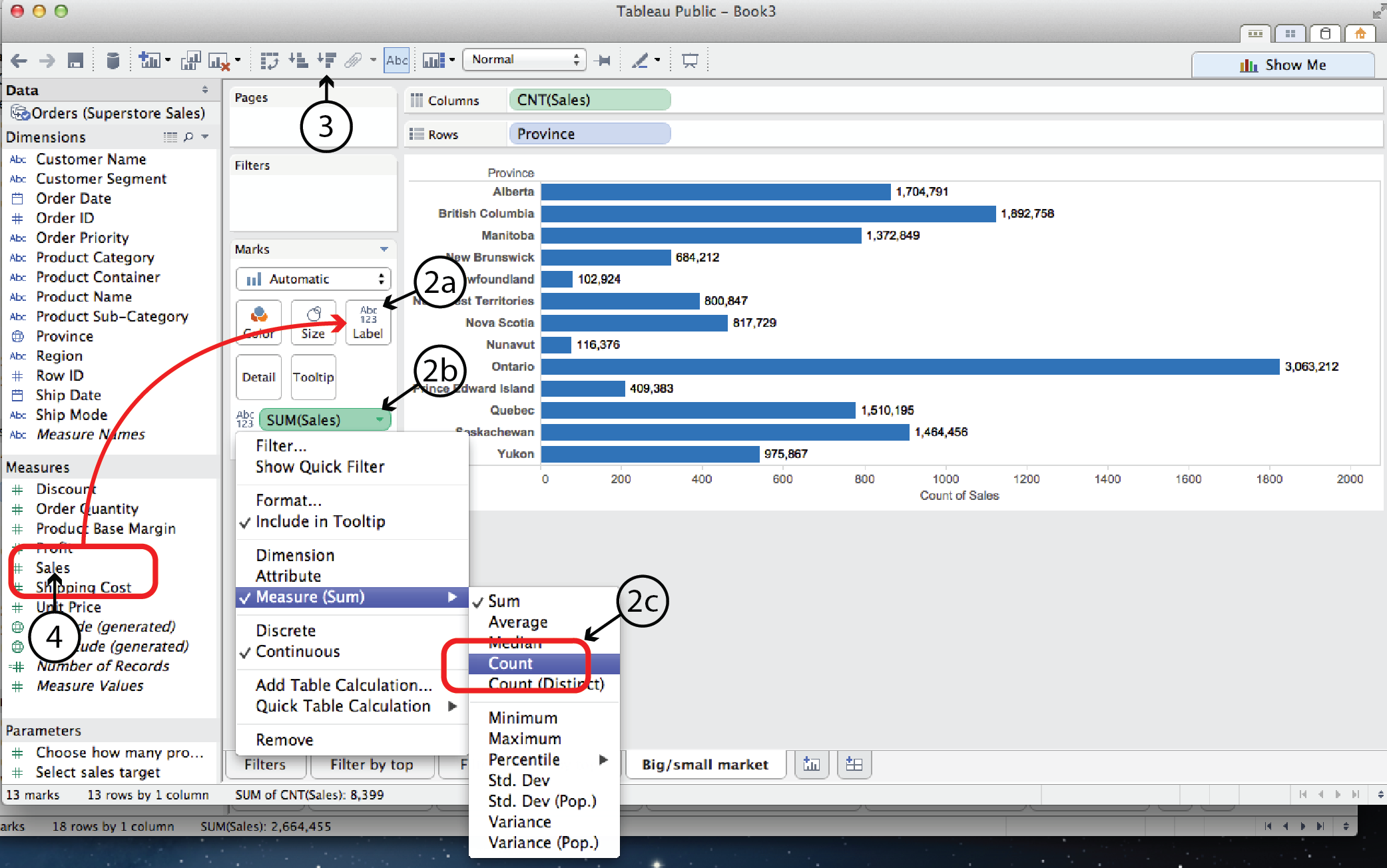
- Open a new worksheet and drag Province to the Rows shelf and Sales to the Columns shelf. Right click on Sales and select Measure to change the measure from Sum to Count, in order to count the number of sales rather than the sales value.
- Then, to add a label to the viz for the number of sales, drag Sales from the Measures list to Label on the Marks Card. As in step #1, right click on the Sales pill on the Marks card and select Measure to change the measure from Sum to Count.
- Select Sort Descending to sort the bars.
- First we’ll create a static big market/small market cutoff. Right click on Sales in the Measures list and select Creat Calculated Field, or select Create Calculated Field from the Analysis menu. Either way, the Calculated Field dialog opens.
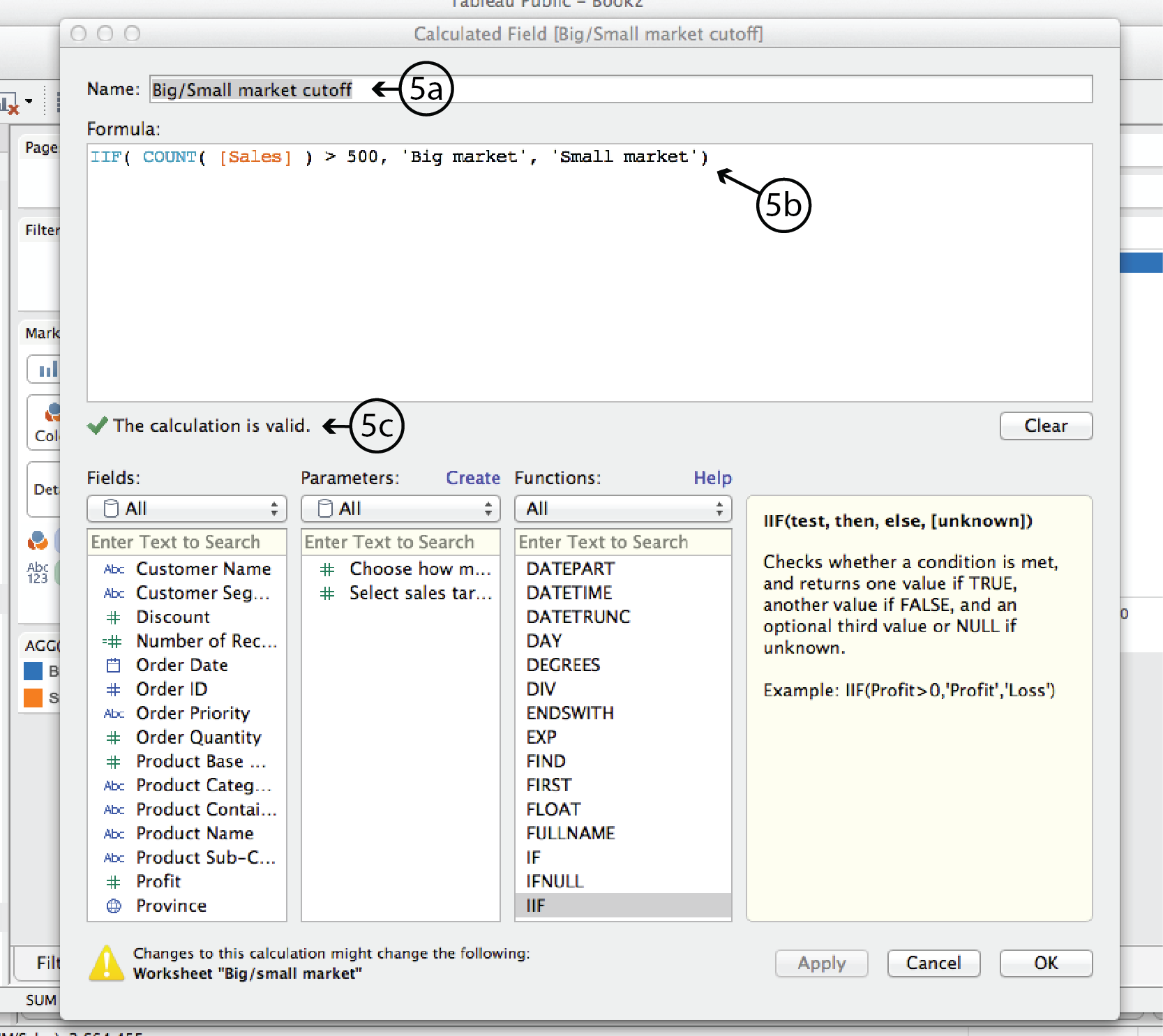
- In the CF dialog, add a Name at the top, such as Big/Small market cutoff. In the Formula window add the following formula:
IIF( COUNT( [Sales] ) > 500, ‘Big market’, ‘Small market’ )In plain english, this formula says is: IF the count (i.e. the number) of Sales is greater than 500, THEN it is a Big market, otherwise it is a Small market.
Tableau will verify that the formula syntax is correct with a green checkmark below the Formula window. Then click OK to close the dialog.
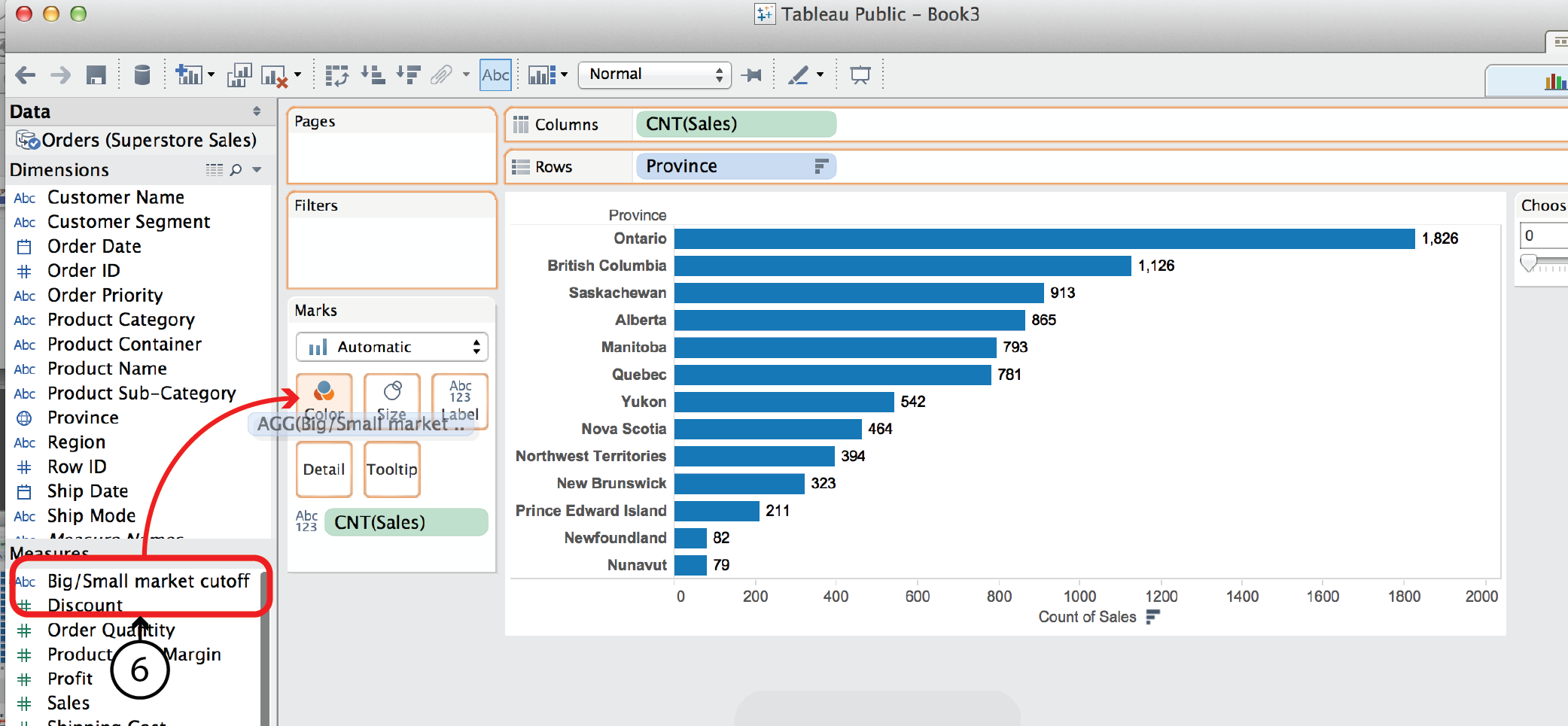
- The newly created Calculated Field is now listed at the top of the Measures list on the left. The small asterisk to the left of the name indicates that it is a CF. Now you can drag it ¬from there to Color on the Marks Card. Tableau will colour code the bar chart according to whether the province is a big or small market and add a colour legend.
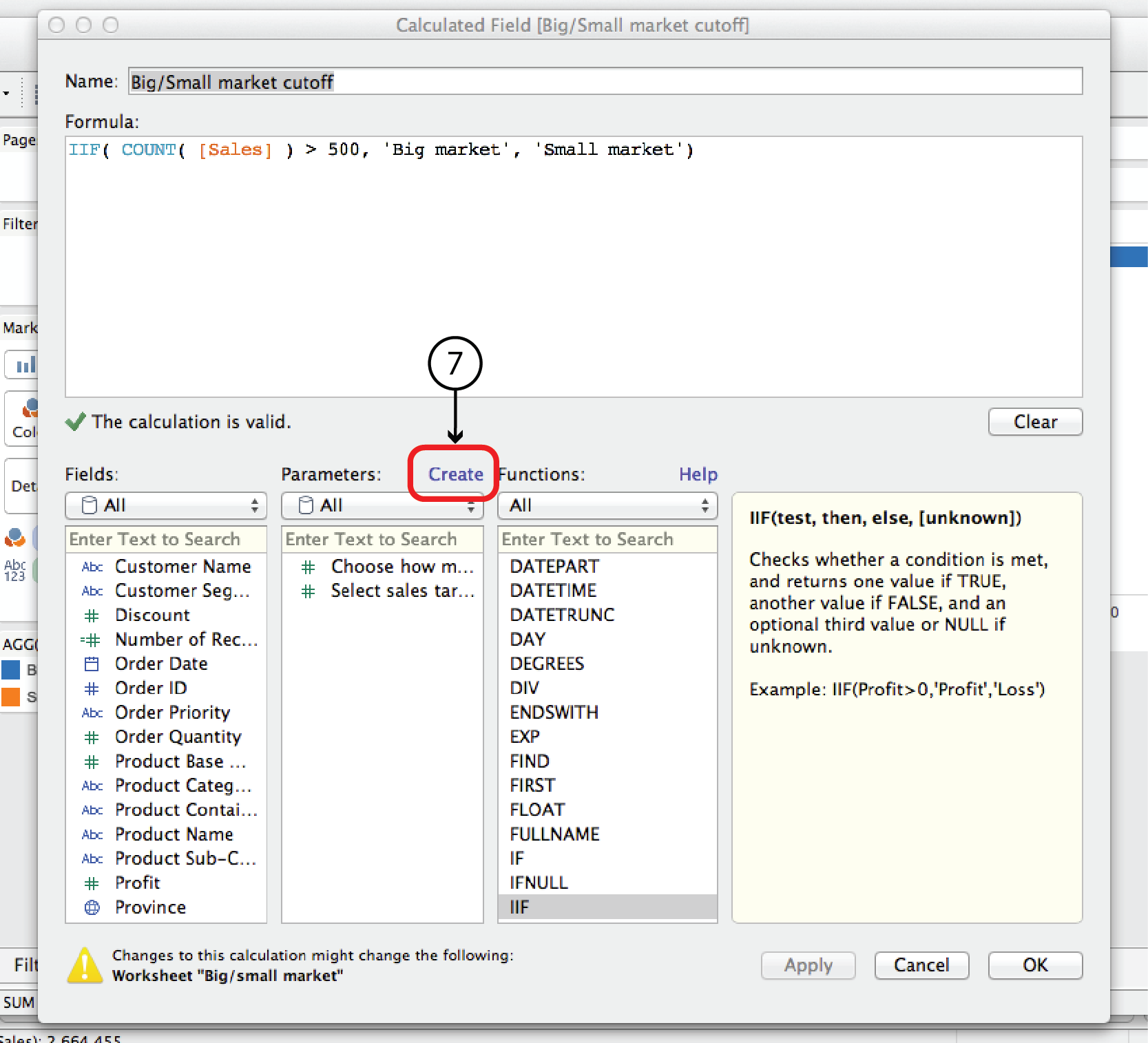
- In order to make the Big/Small market cutoff interactive, you have to first replace the number 500 in the CF with a parameter, and then add the parameter control to the worksheet. To do that, right click on the Big/Small market cuttoff CF in the Measures list and select Edit to open the CF dialog. At the top of the Parameters list, click Create to open the Create Parameter dialog.
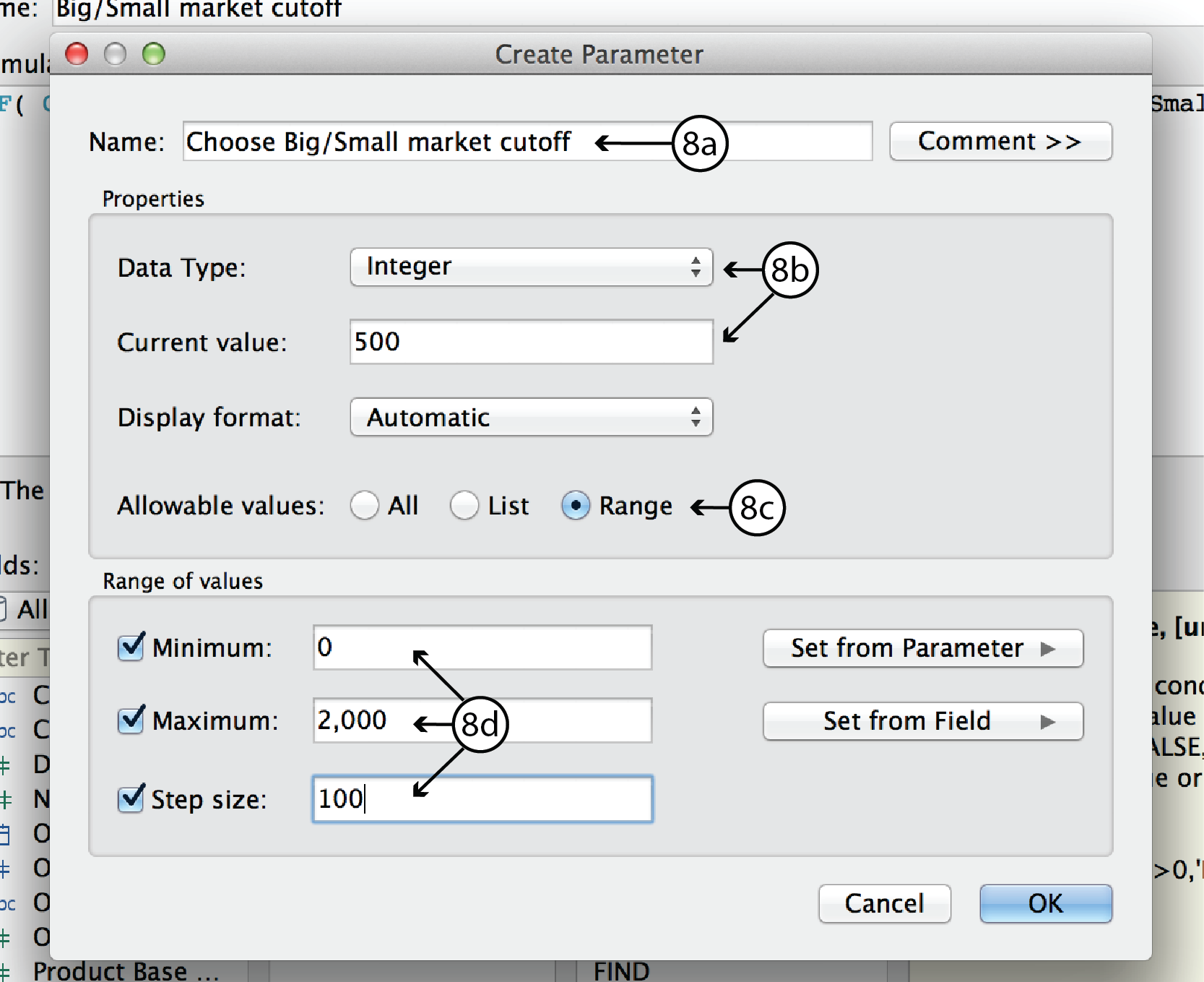
- In the Create Parameter dialog, enter a name such as Choose Big/Small market cutoff. For Data Type, choose Integer. For Current Value, choose 500 or any other default value you want. Leave Display format as Automatic. For allowable values, choose Range. Since we know that the range of sales orders goes from roughly 0 to 2000, select Minimum and enter 0, select Maximum and enter 2000, and select Step Size and enter 100. Click Okay to return to the CF dialog.
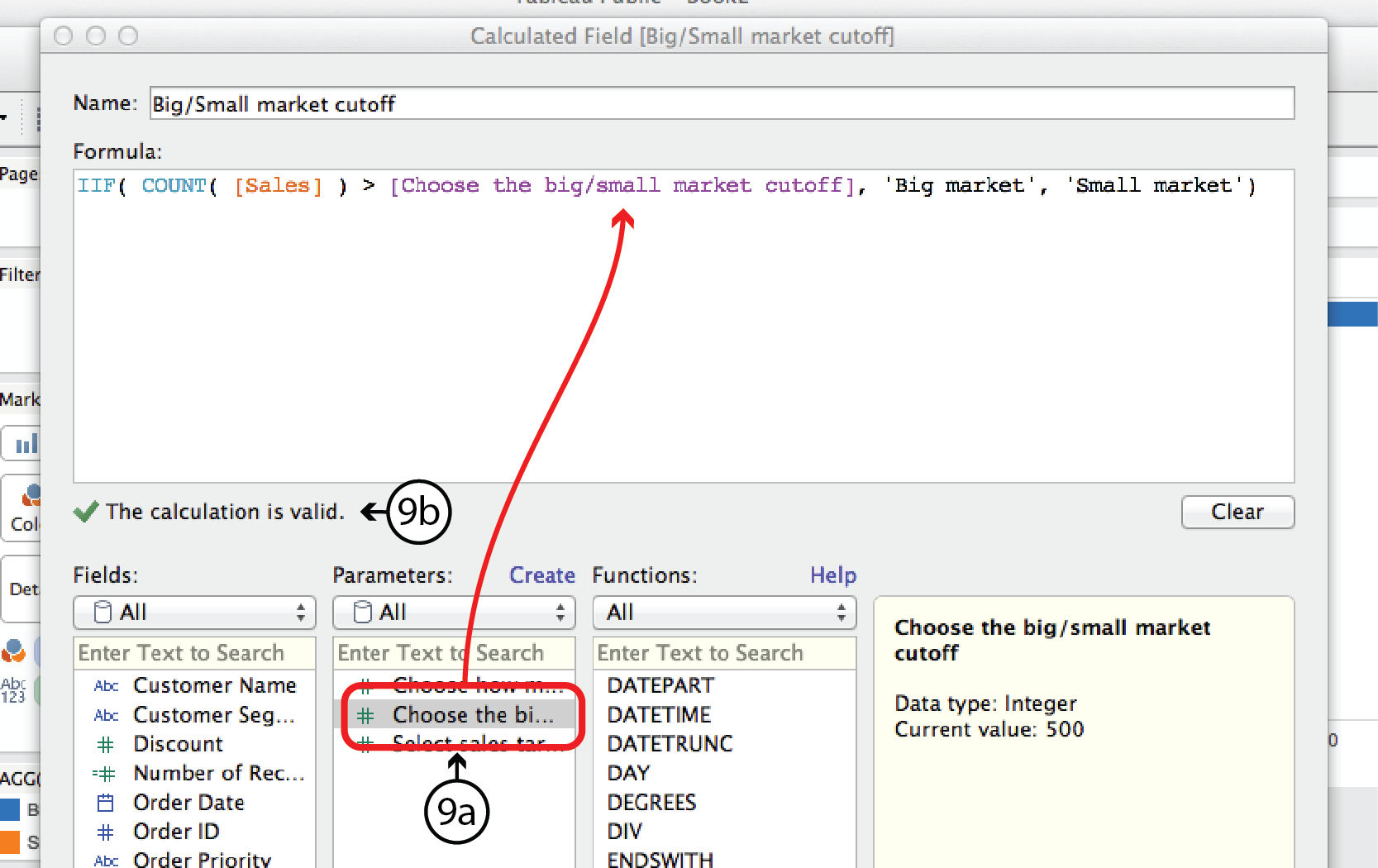
- In the CF dialog, you should see the new parameter listed in the Parameters list. Now you can replace the number 500 in the Formula with the parameter by highlighting 500 and then double clicking on the new Parameter. If all goes well, Tableau will confirm that the formula syntax is correct with another green checkmark. If so, click OK.
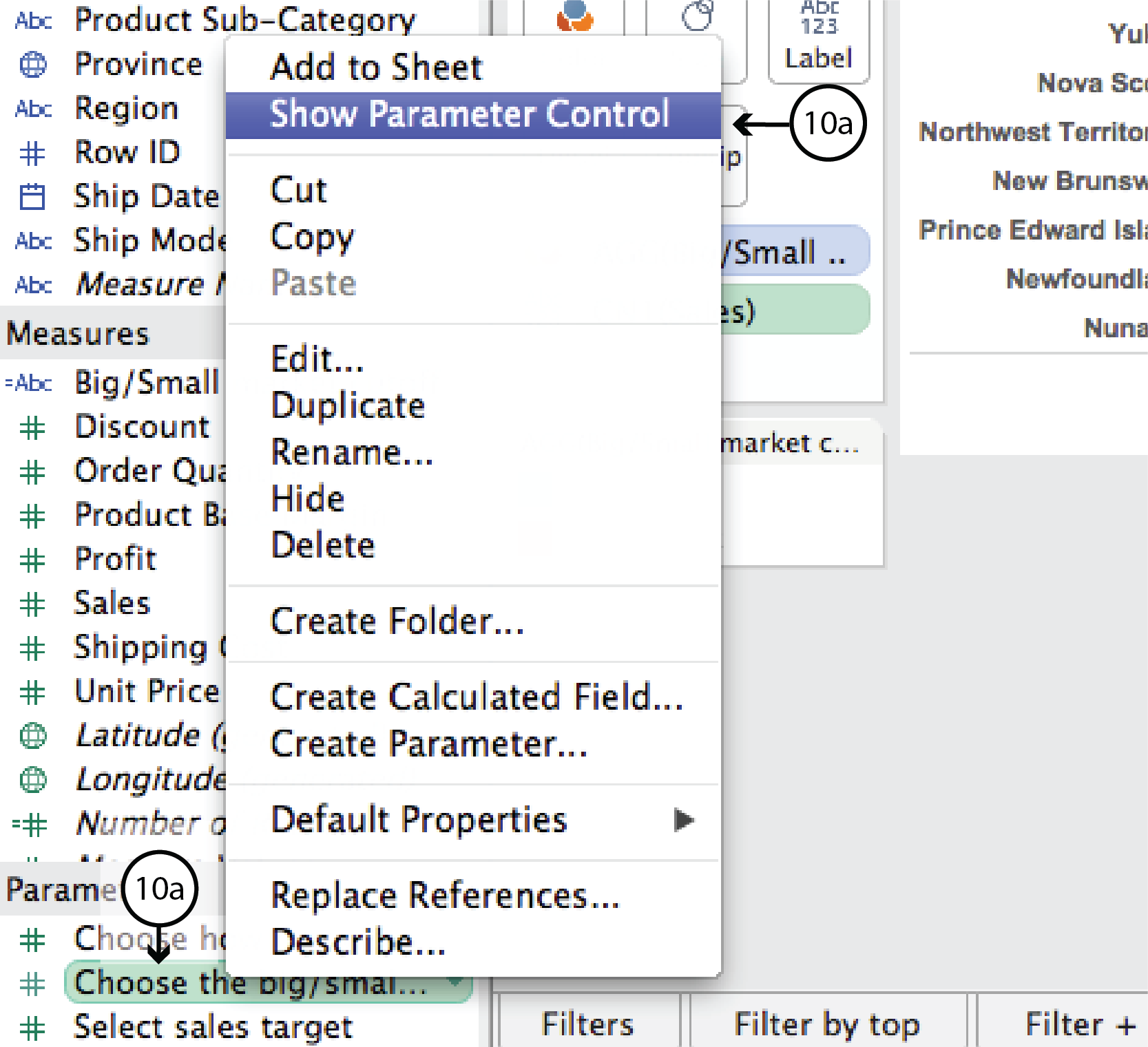
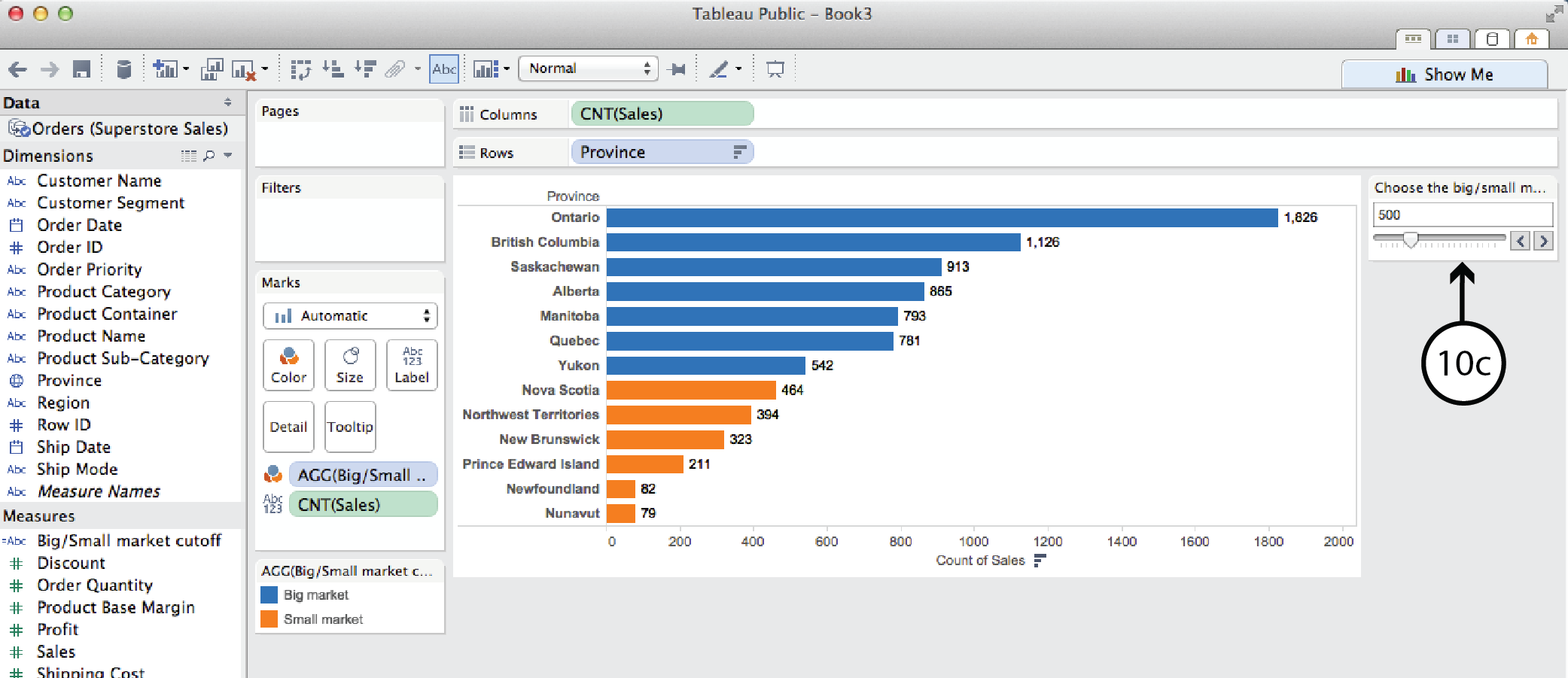
- The new Parameter is listed in the Parameters menu on the bottom left of the worksheet. This time, though, Tableau did not automatically add it to the worksheet. To add it, right click on the Parameter in the menu and select Show Parameter Control. This brings a combination Type-in and Slider Parameter control onto the worksheet that lets the user control where the big market/small market cutoff is.
DataViz in 6 Weeks is my blog about teaching Introduction to Visual Analytics at OCAD University in Toronto. Comments, follows and shares welcome. #DataVizInSixWeeks
Anne Stevens
I am a multidisciplinary designer working in data visualization, interaction design and innovation. I am particularly interested in non-screen based physical representations of data and tangible user interfaces.
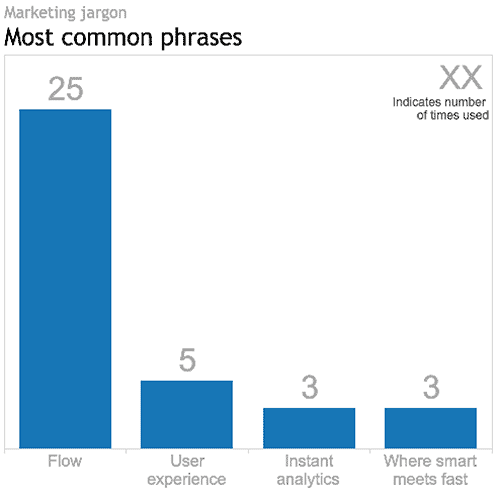 Tableau v9.0 virtual launch party overFLOWs with marketing jargon Tableau hosted an east-coast/west-coast Virtual User Group launch party to introduce their newest version, v9.0: the Flow release, as they coined it. __ First impression At the risk of sounding shallow, I expected a bit more polish from Tableau. They are a worldwide leader in the BI market and they boast impressive revenue and growth numbers. But with too much blunt.]]> Tableau v9.0 virtual launch party overFLOWs with marketing jargon
Tableau hosted an east-coast/west-coast Virtual User Group launch party to introduce their newest version, v9.0: the Flow release, as they coined it.
__
First impression
At the risk of sounding shallow, I expected a bit more polish from Tableau. They are a worldwide leader in the BI market and they boast impressive revenue and growth numbers. But with too much blunt marketing jargon and filler the two hour production seemed a bit cheap.
I couldn’t resist counting the number of times (a) Flow, Where Smart Meets Fast, Instant Analytics and Fast Fast Fast were use, (b) improved user experience was referenced, and (c) one of the presenters repeated the mantra: “I’m so excited!!!”. Which begs the question: why wasn’t there more content for this invested and engaged Tableau user to focus on?
So just how many times was the word FLOW used in the just-less-than-two-hour event? Answer: 25. See the viz above.
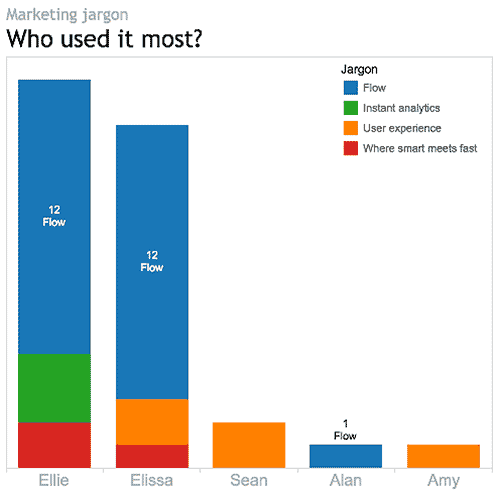
Which presenter used it the most? Answer: that depends. Ellie and Elissa each used it twelve times. So, based on the raw data, it’s a tie. However, normalizing the data reveals Elissa as the front runner, using Flow every 55 seconds on average. By comparison Ellie, who was on air much longer, only used it every 3 minutes and 50 seconds, on average. Congratulations Elissa.
__
Enough about the talking heads. Let’s get down to the new Tableau product itself. This is what v9.0 has to offer:
For the data geek
Lots and lots of geeky new stuff:
- • tools for interpeting, pivoting and tweeking Excel data. For example, Tableau 9.0 comes with a Split tool for splitting comma- or space- separated data into separate columns. This tool will eliminate the need to go back to Excel to take care of that clean up job before connecting to the data in Tableau.
- • the introduction of Level of Detail expressions (LODs), which Tableau describes as a very powerful new tool. What are LODs?, you ask. Good question. As Tableau describes it, there are many analysis questions that seem intuitive and easy to put in words, but difficult to actually execute in Tableau. For example, in my Tableau woes – Part 2 tutorial I described how you could use a Calculated Field to answer the question: how do Quebec Sales compare to National Sales? What made this simple enough question a challenge for Tableau prior to v9.0 is that it involved querying the data at two different levels of detail – the province and the country – at the same time. Before v9.0, answering these kinds of intuitive questions involved duplicate dimensions, sets, blends or table calculations, and felt a bit like workarounds. LODs give more control over how granular or aggregated the data is, regardless of the granularity or aggregation (i.e level of detail) of the actual visualization. They are supposed to make enquiry simpler, faster, more intuitive and more repeatable.
- • new data sources and/or improved connections: SAS, SPSS, R, Spark SQL, Amazon EMR, IBM Big Insights, Salesforce.com etc.
- • support for Regex expressions, if you are into that.
For the mapper
Improved usability (thank goodness!!!)
- • smoother, more Google-like pan and zoom
- • a new Geographic Search tool
- • lasso and radial selection tools that will feel more hands-on than conventional filter lists, sliders and dialogs that sit outside the actual viz. The selection tools should make for more on-the-fly map selection.
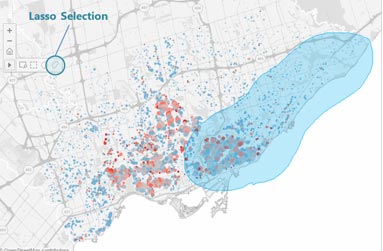
I didn’t hear anything about improved map granularity for non-US locations. However, Ellie’s map example – Edinburgh, Scotland – had postal-code/zip-code level detail, so I’m optimistic.
For the interface and usability person (and who isn’t?)
- • Those new lasso and radial selection tools will work on all visualizations, not just maps. Yay.
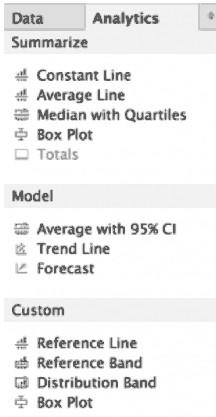
- • A second, Analytics, tab has been added to the existing Data menu on the left side of the UI (see image below). This Analytics menu will let you drag and drop multiple Trend Lines, Reference Lines etc. directly onto the viz, eliminating the need to go to pull down menus to do one thing at a time.
- • In general, v9.0 should offer more immediate feedback and analysis results while selecting, analysing and building Calculated Field expressions, for more on-the-fly exploration and iteration.
- • Type-in Pills give the analyst the option of clicking on a shelf and typing in a Measure or Dimension name, rather than dragging and dropping.
- • Faster query processing speeds, thanks to query caching, parallel queries and other mysterious under the hood improvements.
For the Tableau Public user
Apparently all the new v9.0 features will be available on Tableau Public, not just the paid versions (Server, Online and Desktop).
Tableau claims that they will be adding more profile and social features to TP so that people can use the platform more as a portfolio and blog. I hope they offer some control over who can see what. For example, I might want to publish my finished works to everyone, but hide all my drafts and preliminary versions. Or, I might want to share visualizations amongst a certain group of people – my Visual Analytics class, for example. Hopefully, that will be possible. Tableau didn’t provide this kind of detail, so it remains to be seen.
For the storyteller
Ellie mentioned formatting upgrades for Storypoints – not during her formal demo, but as more of a casual comment during her chit chat with Nate in the dying minutes of the production. She suggested these upgrades could be a sleeper hit of v9.0, but didn’t offer any additional details or images. Stay tuned.
For sales and marketing
A lot of cheese during the sales pitch part of the presentation:
- • Powerpoint slides of a competitive sailing athlete (sails/sales, geddit?) racing her heart out, but staying “in the flow”, at peak performance, one with her boat and the waves. Thus the marketing strategy is revealed.
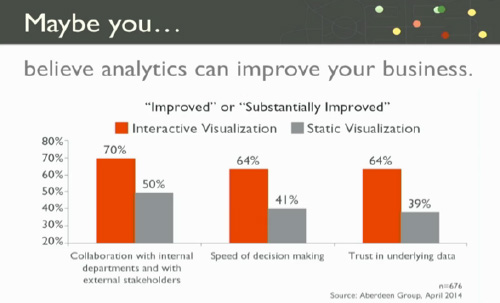
- • some very loosey-goosey bar charts to support Elissa’s notion that “maybe” “you believe” that “analytics can improve your business” and translate into improved sales (sails?). Her bar chart (below) actually addresses a different question altogether, namely, the relative value of interactive and static visualizations. For example, looking at the grey bars, only 41% of people believe that static visualizations improve the speed of decision making and, therefore, 59% of people don’t.
__
Background
I use Tableau Public and Google Refine (aka Open Refine) in my Introduction to Visual Analytics course so that the students can get up and running in a relatively short time generating multiple visualizations from real datasets. At this point in time we use Tableau Public v8.2 for Mac.
I have not personally beta tested v9.0. This blog is based solely on what I heard and saw during the Tableau Virtual User Group launch party. I look forward to using v9 after its full release and am sure that I will discover much more then. Stay tuned.
Oh, and one more thing: did I mention flow?
DataViz in 6 Weeks is my blog about teaching Introduction to Visual Analytics at OCAD University in Toronto. Comments, follows and shares welcome. #DataVizInSixWeeks
Anne Stevens
I am a multidisciplinary designer working in data visualization, interaction design and innovation. I am particularly interested in non-screen based physical representations of data and tangible user interfaces.
 I created this data viz course and have delivered it four or five times now. As you might imagine, I didn’t get everything right the first time (“no guff!” I hear the first cohort saying) and, as a result, the course evolved from one iteration to the next. I have learned a thing or two about teaching along the way. The students in Continuing Studies are already pretty highly motivated.]]> I created this data viz course and have delivered it four or five times now. As you might imagine, I didn’t get everything right the first time (“no guff!” I hear the first cohort saying) and, as a result, the course evolved from one iteration to the next.
I have learned a thing or two about teaching along the way. The students in Continuing Studies are already pretty highly motivated self starters. Why else would they commit their Saturdays or Sundays to data viz school? Nevertheless, this time around I deliberately increased their deliverables and structured weekly assignments of one kind or another. Wow! Did they ever deliver. Mind blown : )
As an homage to @thisisindexed.com, I captured my biggest take-away from the class in a simple info graphic: the more you ask them to do, the more they deliver.
DataViz in 6 Weeks is my blog about teaching Introduction to Visual Analytics at OCAD University in Toronto. Comments, follows and shares welcome. #DataVizInSixWeeks
Anne Stevens
I am a multidisciplinary designer working in data visualization, interaction design and innovation. I am particularly interested in non-screen based physical representations of data and tangible user interfaces.
 For many Tableau beginners, making high density, interactive visualizations can be a challenge. Tableau woes – Part 1 addressed this challenge with three strategies for combining data variables into a single display rather than plotting them in individual rows and columns (Tableau’s default mode, that makes direct comparison difficult to impossible): Measure Values Blending Axes Dual Axes This post will explain two more tools that can be used to add.]]> For many Tableau beginners, making high density, interactive visualizations can be a challenge.
Tableau woes – Part 1 addressed this challenge with three strategies for combining data variables into a single display rather than plotting them in individual rows and columns (Tableau’s default mode, that makes direct comparison difficult to impossible):
- Measure Values
- Blending Axes
- Dual Axes
This post will explain two more tools that can be used to add data density to a Tableau viz and give it a bit more interactivity.
- Create Calculated Field
- Hierarchy
As with the previous post, I’m using Tableau’s superstore sales dataset.

Where we left off in the previous post
Create Calculated Field
Starting where we left off in Tableau Woes – Part 1, what if you had created the viz above, but wanted to compare sales in one province, say Quebec, to national sales. If you tried to filter by province, Tableau would apply the filter all the Dimensions and Measures in the display and the end result would be a comparison of Quebec sales to Quebec sales, which is not useful.
The solution is to use Create Calculated Field. CCF is one of Tableau’s real strengths. It allows the user to create new Measures and Dimensions that were not in the original dataset, directly from inside Tableau and on the fly. With it, you can avoid having to back out of Tableau, revise the original Excel file, re-connect to Tableau and start all over again. Here’s an example:
- Again, starting where we left off in the previous blog post, go to the Analysis pull down menu and select Create Calculated Field.
- In the Calculated Field dialog box, give the CF a Name at the top, such as Quebec Sales.
- Construct a Formula in the box below. In this case, we need a classic If This Then That logic function to be applied to each row in the dataset that goes like this: if the province is Quebec, then use the Sales value, else use a value of zero. In Tableau syntax, this looks like so:
- IIF ( [Province] = ‘Quebec’, [Sales], 0)
- You could simply type the function into the Formula box, but it is better practice to double click on the actual Dimension, Measure and Function names in the lists below and let Tableau add the necessary brackets and get the exact spelling.
- After closing the CCF dialog, a new measure called Quebec Sales will appear in the Measures list, from where it can be used to build a visualization like any other Measure or Dimension. You can tell it is a CF because of the little asterisk added to the symbol to the left of the Dimension name.
- Remove Profits from the Rows shelf and move Quebec Sales there instead. Then right click on Quebec Sales and select Dual Axis. Finally, right click on the Quebec Sales axis and select Synchronize Axes. (See Tableau Woes – Part 1 for more detailed instructions re. these steps. ) Now the display shows Quebec sales in one colour and national sales in another, making comparison and analysis possible.
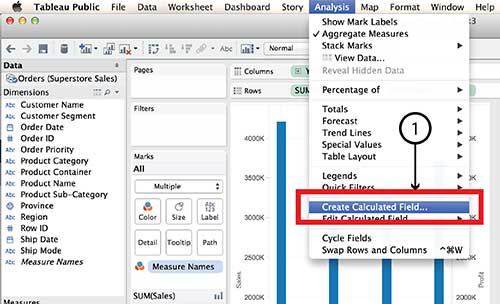


Tableau Parameters are another tool for controlling what is displayed. Parameters also make use of the Create Calculated Field function.
Hierarchy
The Hierarchy tool can also add interaction and dimensionality to a visualization, making it possible to drill down into detail or aggregate back up to bigger buckets. Here’s how it works:
- On a new worksheet, drag Product Sub-Category on top of Product Category in the Dimensions menu.
- Give the Hierarchy a name, such as Product Hierarchy in the dialog box and click OK.
- A new Dimension called Product Hierarchy will be listed in the Dimensions menu with Product Category and Product Sub-category listed under it.
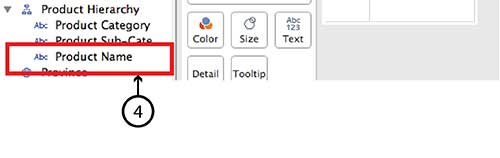
- To add Product Name simply drag it directly into the same Hierarchy.
- Do the same with Customer Segment and Customer Name, and even Region and Province.
- Now the new Hierarchy pills can be dragged to the Row and Column shelves in the same way that any individual Dimension or Measure can be. For example, drag Product Hierarchy, Customer Hierarchy and Region Hierarchy to the Rows shelf and Sales to the Columns shelf and choose Horizontal Bar Graph type.
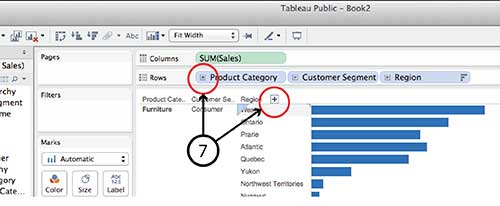
- You can drill down into any of the Hierarchy pills on the Row shelf by clicking the small Plus sign beside the pill name or the Plus symbol that appears when you hover over the Product Category, Customer Segment or Region axis lables in the visualization. Similarly, once you have drilled down a level from, say, Region to Province, you can click on the little Minus sign on the Region pill or the Minus sign on the Region axis.



It is worth noting that Hierarchy isn’t equally interactive for all viz types in dashboard view. A treemap, for example, doesn’t have any axes and I found it impossible to find a Plus or Minus sign to click. I imagine the same goes for a Bubble chart. If anyone has a solution for this problem, I’m all ears.
DataViz in 6 Weeks is my blog about teaching Introduction to Visual Analytics at OCAD University in Toronto. Comments, follows and shares welcome. #DataVizInSixWeeks
Anne Stevens I am a multidisciplinary designer working in data visualization, interaction design, innovation and critical design. I am particularly interested in non-screen based physical representations of data and tangible user interfaces.
]]> Naturally, Tableau Public’s Getting Started vidoes and tutorials make creating compelling visualizations look smooth and easy; as though you can simply download the program and hit the ground running. But from what I’ve seen in class (as well as my own experience), it ain’t necessaily so. Common frustration Once you connect to some data set and start placing Dimensions and Measures on Rows and Columns shelves, Tableau has a frustrating.]]> Naturally, Tableau Public’s Getting Started vidoes and tutorials make creating compelling visualizations look smooth and easy; as though you can simply download the program and hit the ground running. But from what I’ve seen in class (as well as my own experience), it ain’t necessaily so.
Common frustration
Once you connect to some data set and start placing Dimensions and Measures on Rows and Columns shelves, Tableau has a frustrating habit of spreading them out in individual rows and columns rather than layering them on top of each other. This creates at least three problems:
- • It is counter intuitive and makes it impossible to actually compare anything to anything else. And what are data analysis and visual analytics for, if not for comparing things?
- • The y-axis scale is different for each row, making direct comparison impossible.
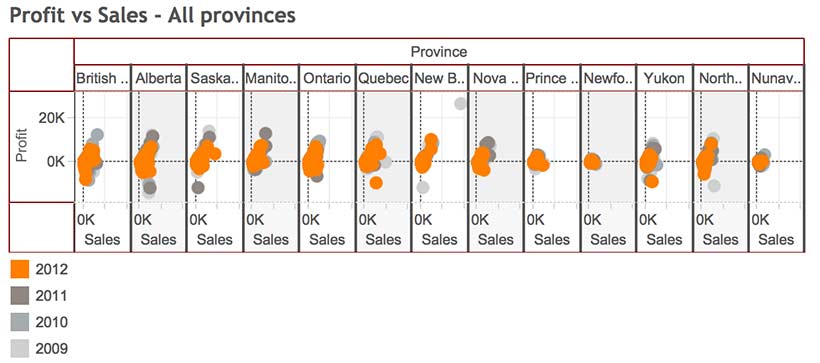
- • Before long, the visualizations become unreadable because Tableau has to shrink all those rows and columns to fit on screen, as in the illustration at the top of this post.
For example, using Tableau’s superstore sales dataset, when Sales, Profit and Order quantity are dragged to the Rows shelf, the resulting line graphs are displayed in three rows, rather than all on the same graph with a common y-axis scale.

Possible solutions
In today’s class we covered a number of strategies for increasing the dimensionality of Tableau visualizations and avoiding the problem above.
Measure Values (what’s that mean and where did it come from?)
Use the Measure Values and Measure Names, two Calculated Fields that Tableau automatically generates when it connects to a data set. Think of Measure Values as being all the Measure variables grouped together.
- Instead of dragging individual Measures (i.e. variables) to the Rows shelf, drag Measure Values there.
- The Measure Values Card automatically opens, listing all the Measures.
- The visualization will look wierd until you drag the SUM(Number of Records) Measure out.
- Continue deleting any Measures you don’t want in the viz by dragging them to the side or right clicking on the Measure and selecting Remove (from the Measure Values card, not the original Measures list on the far left).
- Tableau automatically throws a Measure Names pill into the Marks Card. Think of Measure Names as being the names of all the Measures, grouped together. Drag it onto colour in order to create a colour legend.


Blending axes
Another way to do pretty much the same thing:
- Drag one Measure, such as Sales to the Rows Shelf and Order Date to the Columns Shelf.
- Instead of dragging other Measures to the Rows Shelf, drag them one at a time to the y-axis of the viz. Tableau automatically places Measure Values on the Rows Shelf and opens the Measure Values Card, creating the same end result as the example above.

Dual axes
A third way to combine variables is to create a Dual Axis viz. But this only works for a maximum of two variables.
- Drag Sales and Profit to the Rows Shelf, as before.
- Drag Order Date to the Columns Shelf, as before.
- Right click on the second pill on the Rows Shelf and choose Dual Axis from the menu. This creates a single viz with two line graphs. The Sales and Profit pills now look like they are joined together in the centre, indicating that they are Dual Axis.
- The problem is that the two y-axes are not calibrated the same. It is necessary to right click on the second y-axis and select Synchonize Axis.
- The appearance of each Measure (Sales and Profit) can be controlled from its own Marks Card. For example, selecting the SUM(Sales) Card will expand it. From there, you can select another graph type, such as Bars, from the menu.
- Drag Product Category to Colour to turn the Sales Bars into Stacked Bars.


Perception and cognition
The theory part of the class covered concepts of perception and cognition, and how they inform basic visualization design decisions. You can read about it here.
Here’s the Week Three – Perception & cognition slides.
DataViz in 6 Weeks is my blog about teaching Introduction to Visual Analytics at OCAD University in Toronto. Comments, follows and shares welcome. #DataVizInSixWeeks
Anne Stevens I am a multidisciplinary designer working in data visualization, interaction design, innovation and critical design. I am particularly interested in non-screen based physical representations of data and tangible user interfaces.
]]>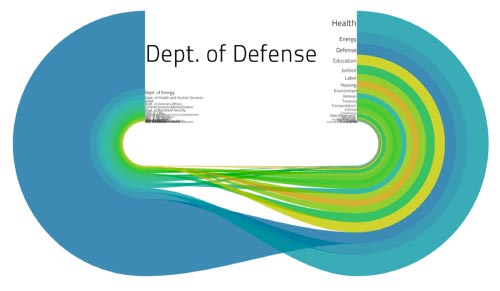 Began the class with a game of Ripping Yarns. Working in small groups, the students’ challenge was to deconstruct a data visualization whose meaning wasn’t immediately obvious – i.e. that didn’t hand them an answer on a platter – based on the visual info, hints and clues provided. Then, to construct the best story possible about what the viz meant, keeping just this side of implausibility. The result? This clockwise.]]> Began the class with a game of Ripping Yarns. Working in small groups, the students’ challenge was to deconstruct a data visualization whose meaning wasn’t immediately obvious – i.e. that didn’t hand them an answer on a platter – based on the visual info, hints and clues provided. Then, to construct the best story possible about what the viz meant, keeping just this side of implausibility.
The result? This clockwise visualization, above, represents Battlestar Galactica expenditures before and after the invasion by the Cylons (?)*
Not surprisingly, the author’s intended meaning was different: a comparison of US departmental budgets relative media coverage in 2009. It had nothing to do with flows of either money or time. Can’t blame students for reading either relationship into it the viz, though.
This lesson led right into Week Two’s subject matter: a survey of visualization types and a discussion of their strengths, weaknesses, implications and data-suitability.
Here’s the Week Two slides.
* If I didn’t capture the BG storyline and references accurately, the students can correct me or elaborate, as they see fit.
#DataVizInSixWeeks is my blog about teaching Introduction to Visual Analytics at OCAD University in Toronto. Comments, follows and shares welcome.
Anne Stevens I am a multidisciplinary designer working in data visualization, interaction design, innovation and critical design. I am particularly interested in non-screen based physical representations of data and tangible user interfaces.
]]> Just launched version 2 of DataViz in 6 Weeks, a blog about teaching the Introduction to Visual Analytics course at OCAD University in Toronto. First class, fall term, was disrupted by brand new classroom projector technology that worked until it didn’t, and a fire alarm evacuation that kept us huddled under an awning across the street to keep out of the rain. An hour later, we schlepped back up the.]]> Just launched version 2 of DataViz in 6 Weeks, a blog about teaching the Introduction to Visual Analytics course at OCAD University in Toronto.
First class, fall term, was disrupted by brand new classroom projector technology that worked until it didn’t, and a fire alarm evacuation that kept us huddled under an awning across the street to keep out of the rain. An hour later, we schlepped back up the stairs to the top floor. Computer restarted and, surprise, it still couldn’t connect to the projector. Kudos to the class for being good sports and gathering around my laptop for a small screen presentation about putting data visualization in context. In the half light classroom, it felt a bit like telling stories around a glowing camp fire.
- Historical Context: the emergence of statistical graphics in the 18th c, the ‘Golden Age’ in the 19th c, the dark ages and then a kind of renaissance and explosion in the 20th.
- Disciplinary Context: Not all visualizations are created equal. What, then, is the difference between infoViz, dataViz, visual analytics, data analytics and scientific/medical visualization? And what about non-screen based stuff like data sculpture and physical viz?
Thanks to Michael Friendly’s The Golden Age of Statistical Graphics for a great survey of the Golden Age of statistical graphics, and his Milestones of data viz website.
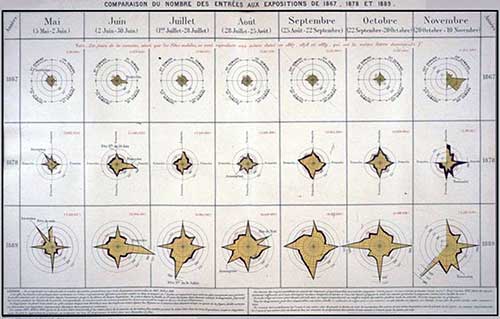
Two way star radial
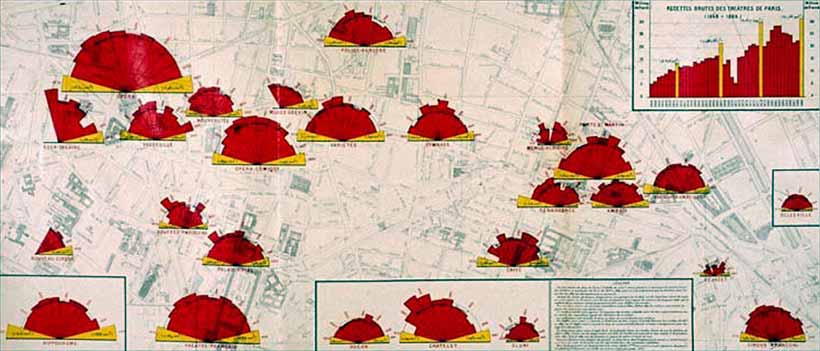
Polar radial viz of theatre audiences in Paris
Here’s the Week One slides.
DataViz in 6 Weeks is my blog about teaching Introduction to Visual Analytics at OCAD University in Toronto. Comments, follows and shares welcome. #DataVizInSixWeeks
Anne Stevens I am a multidisciplinary designer working in data visualization, interaction design, innovation and critical design. I am particularly interested in non-screen based physical representations of data and tangible user interfaces.
]]>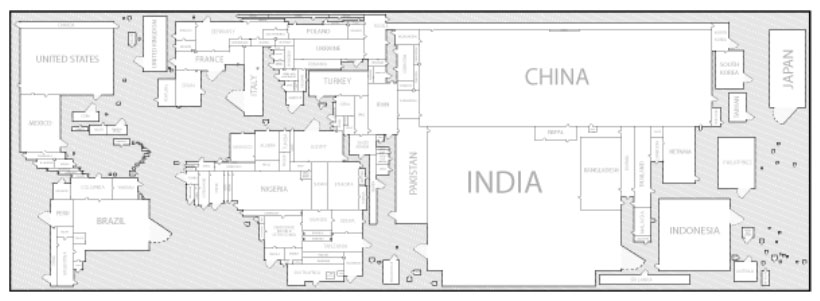 It seems to me that cartography is a lot more comfortable with metaphor (maps as metaphors; the metaphorical use of maps) than either data viz or visual analytics are. Data Viz and metaphor So what does data visualization have to say about metaphor? Edward Tufte, with his less-is-more, no-nonsense approach to numbers, statistics and data visualization, dismisses the metaphor as a cutesy and gratuitous device and a sign of ”loose”.]]> It seems to me that cartography is a lot more comfortable with metaphor (maps as metaphors; the metaphorical use of maps) than either data viz or visual analytics are.
Data Viz and metaphor
So what does data visualization have to say about metaphor?
Edward Tufte, with his less-is-more, no-nonsense approach to numbers, statistics and data visualization, dismisses the metaphor as a cutesy and gratuitous device and a sign of ”loose” thinking:
- Largely descriptive metaphors … don’t contribute much to the substance at hand. Such metaphors are inevitably dequantified, turning data into vague, cute shapes. — Edward Tufte
Fernanda B. Viégas and Martin Wattenberg describe metaphors as mere surface treatment:
- First, the (data) artworks must be based on actual data, rather than the metaphors or surface appearance of visualization. — Viegas and Wattenberg
I agree with Tufte that sports announcers and politicians have been known to abuse metaphors (we can’t all be so eloquent). Equally, some information designers have been known to play fast and loose with data, often disguising the facts with one form of distracting surface treatment or another, including visual metaphors. In either case, the fault lies with the speaker or the designer – not with the metaphor, so let’s not throw the metaphorical baby out with the bath water. In data viz, the role of metaphor deserves a deeper look.
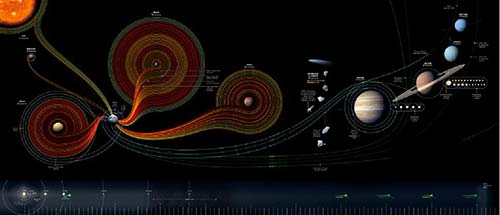
Cartography and metaphor
Maps, like metaphors, are simple things that help us understand bigger and more complex things (such as the earth or the New World). Marshall McLuhan said that all media are metaphors in that they translate one thing (raw experience, data, the earth) into another form (speech, visualization, a map). But, he said, no medium is a neutral carrier of content. What one hides, another reveals. World maps flatten curved space, distorting one dimension to preserve another; maps necessarily conceal as much as they reveal. After all, a 1:1 scale map of the world would be useless. In these respects, maps and data visualizations are no different.
But more than that, we think spatially – even about non-spatial concepts (more on this below). So extending spatial and map-related metaphors to information in other domains comes naturally to us.
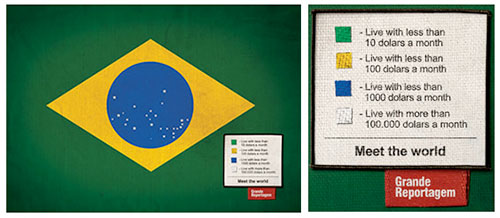

Metaphor and cognition
Metaphorical thinking is fundamental to cognition. According to Metaphor Theory, in the course of normal early childhood development, we internalize basic spatial metaphorical concepts such as:
- • up and down: people who are active are upright; things that are resting, sleeping, sick or dead are flat
- • big and little: babies and kittens are little. Parents, old people, big brothers and full grown cats are big – ‘cus they’re older
- • inside and outside: being inside your home, blankie, parents’ hug is safe and warm; being outside or far away is not
Subsequently, according to metaphor theory, as language skills develop, we acquire more complex conceptual concepts but they are all built on simpler metaphors. Metaphors, then, are the building blocks (another metaphor) of language and meaning.
So it is with our visual languages, including data viz. Complex visualizations evolve from simpler precedents and rely on the viewer’s familiarity with what came before. We expect our older brother to be bigger and taller than us. Similarly, we associate bigger values with bigger shapes and higher positions on a bar graph. That’s why the following visualization is so sneaky. It reverses the y-axis convention to mislead the viewer into thinking the crime rate has fallen since 2005.
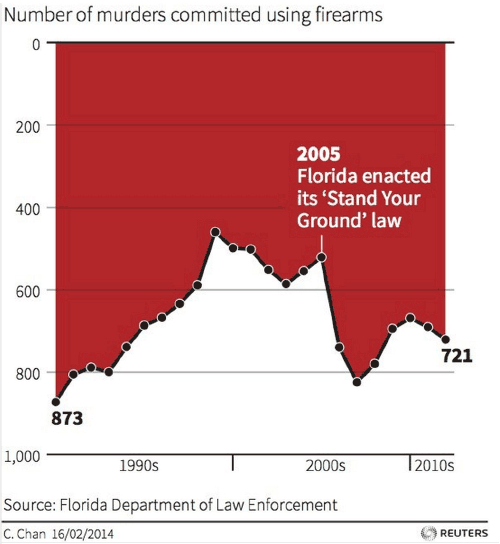
Number of murders committed using firearms: reverses y-axis convention, while using dripping blood metaphor for gory effect
In my Week 3 post, I described how our brains evolved ways to make perception highly efficient while minimizing the load on our visual working memory—so that our heads did not have to be the size of beach balls to handle all that visual processing. As I said then, I’m no psychologist, but it seems to me that we similarly rely on metaphor as a light weight carrier of meaning to reduce the overall cognitive load on our brains.
Four more reasons to pay attention to metaphor
In the interests of space and time, here, briefly, are four more reasons to study metaphor in data visualization:
- Data Viz is a visual language and like all our languages, it is richer and more meaningful thanks to the use and presence of metaphor.
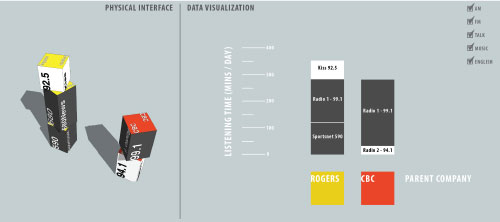
Data Blocks
- Thinking metaphorically, a designer can approach an old subject in a new way. For example, the Data Blocks project came about because I asked: what if people could play with data like playing with building blocks, or what if people could strategize about data the way they gathered around the war room table in World War II movies.

- Familiar metaphors can be used to play with the viewers’ expectation and create surprise meaning.

Modern Landform Series. Westward Spread of H5Ni (avian flu). Kim Baranowski. The trappings and conventions of a childhood scene conceal serious subject matter
- Challenging metaphors can engage viewers by making them use their imagination and problem-solving skills to make the connection necessary to complete the concept.
So are metaphors only acceptable in infoViz and graphic design? Is there no place for them in dataViz and visual analytics? You know where I stand. Please chime in.
This week’s tools
Over the course of six weeks, we have used a range of data visualization tools, starting with the more ubiquitous (Excel), and progressing through a number of more or less user-friendly and more or less open source tools (Many Eyes, Tableau, Gephi, Scrape Similar). Today we demonstrated two open source tools at the more code-savvy end of the spectrum: Processing and D3.js. Both programs let you parse data and design original visualizations entirely from scratch, thus providing more freedom than some of the pre-packaged tools.
Design charrette
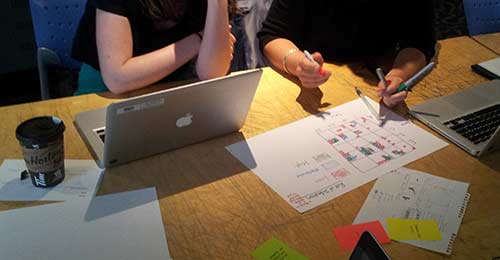
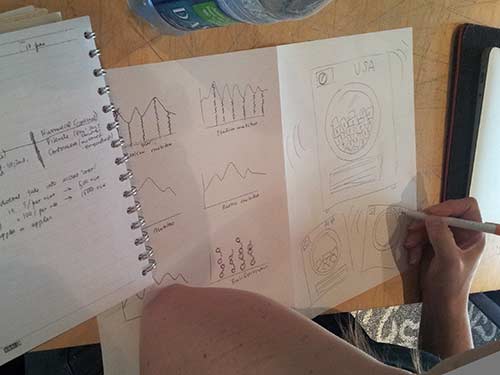
As in Week 4 we played the design charrette card game, this time adding one additional category: data type (ordinal, nominal, in/formal, un/structured, qualitative, quantitative etc.).
DataViz in 6 Weeks is my blog about teaching Introduction to Visual Analytics at OCAD University in Toronto. Comments, follows and shares welcome. #DataVizInSixWeeks
Anne Stevens I am a multidisciplinary designer working in data visualization, interaction design, innovation and critical design. I am particularly interested in non-screen based physical representations of data and tangible user interfaces.
]]> Data Data Viz isn’t just about cool visualizations; it’s also about data. This week we tackled the subject of data: Big Data, Open Data, curating data, data wrangling tools, as well as a little bit of stats. What is Big Data? I’ve always found the term Big data a bit curious because of its similarity to Big Pharma, Big Oil, Big Sugar and Big Tobacco; all largely pejorative terms that.]]> Data
Data Viz isn’t just about cool visualizations; it’s also about data. This week we tackled the subject of data: Big Data, Open Data, curating data, data wrangling tools, as well as a little bit of stats.
What is Big Data?
I’ve always found the term Big data a bit curious because of its similarity to Big Pharma, Big Oil, Big Sugar and Big Tobacco; all largely pejorative terms that refer more to the powerful super-giant corporations that dominate each industry than to the product being harvested or manufactured. Big Anything implies profit at any cost and money-no-object special interest lobbying power.
So, when big data was coined and popularized in the 1990s and the 2000s, was it a deliberate nod to those other Big industries? I’ve looked into a few histories of the term, but can’t find anything that addresses the question. Any thoughts?
- The Origins of ‘Big Data’: An Etymological Detective Story, New York Times
- A Very Short History of Big Data, Forbes Magazine
Definitions of big data typically focus on what makes the data (i.e. the product) unique rather than the corporations who have vested interests in it (despite our growing awareness of these corporations and security services). For example, Wikipedia describes big data as ”a blanket term for any collection of data sets so large and complex that it becomes difficult to process using on-hand database management tools or traditional data processing applications”.
In 2001, Gartner characterized Big Data as growing along 3 different axes — the 3 V’s — not just volume, but variety and velocity as well.
- Data volume: Yes, big data is big. We’ve all heard the stats about how more data has been collected in the last second than all of previous human history. (Okay, that’s not exactly true—yet; but it may be just a matter of time.)
- Variety: Big data comes in a wide range of forms: text, image, sound, social media, metadata, location data, transaction data or sensor data. Sources can be human or automated (i.e. things talking to things in the Internet of Things); formal or informal; structured or not. Originating from a range of sources using different units, terms, definitions, protocols, quality standards and languages, big data is messy.
- Velocity: Big data travels fast but is also very volatile. In social media, information can flow in nearly real time or suddenly go viral. As a result, data needs to be frequently updated or else become obsolete.
Big data – the new oil
When data becomes a commodity, then it stands to reason that the more data the better, right? Maybe not. In many cases, the challenge isn’t to make more data, but to figure out what to do with what we already have. In other words, the challenge is curation rather than creation. Curation is about finding meaning in data, storytelling and adding value to data. And, of course, this is data visualization’s mission.
Some common curation tasks involve:
- Consolidating data from different sources
- Tidying it up to make it internally consistent. For example, even if you are using two different files from the same city’s Open Data portal, you can be sure that no City bureaucrats spent any precious time making sure their department’s date formats, naming protocols or number of decimal places were consistent with those from some other department, just to make your job easier. You can expect to have to do that yourself.
- Structuring unstructured data
- Restructuring data to make it more useful for visualizations
- Editing out unnecessary data to reduce processing load on your visualization program
- Verifying accuracy of data from unfamiliar sources
- Updating and maintaing data
Maybe not the most glamourous side of data viz, but important none the less.
This week’s tools
In keeping with this week’s theme, we used the second half of the class to try our hands at a number of open source tools for wrangling and scraping data:
- XPath code in a GoogleDoc spreadsheet
- The Scrape Similar Chrome extension
- KimonoLabs, a very beta webservice for data scraping
- Google Refine, for tidying messy data
The verdict? Investing a little time to learn XPath code goes a long way, when combined with GoogleDocs and Scrape Similar. Here’s a couple of good tutorials:
- XPath: w3schools
- XPath and GoogleDocs: annielytics
Next week
Metaphor in data visualization
Processing and D3.js programming tools for custom designed data visualizations
DataViz in 6 Weeks is my blog about teaching Introduction to Visual Analytics at OCAD University in Toronto. Comments, follows and shares welcome. #DataVizInSixWeeks
Anne Stevens I am a multidisciplinary designer working in data visualization, interaction design, innovation and critical design. I am particularly interested in non-screen based physical representations of data and tangible user interfaces.
]]> Last week’s topic, Perception and Cognition, dealt with perceptual processing at the level of basic visual forms: shape, size, colour, value, texture, pattern etc. However, visual design and communication are much richer and more complex than that. They involve metaphor, wit, irony, surprise, narrative, interaction, animation and both 2D and 3D form. This week’s class, and the next, addressed these kind of design issues. Interaction William Playfair’s bar chart of.]]> Last week’s topic, Perception and Cognition, dealt with perceptual processing at the level of basic visual forms: shape, size, colour, value, texture, pattern etc. However, visual design and communication are much richer and more complex than that. They involve metaphor, wit, irony, surprise, narrative, interaction, animation and both 2D and 3D form. This week’s class, and the next, addressed these kind of design issues.
Interaction
William Playfair’s bar chart of Scottish imports and exports in 1780 was a static, black and white image intended for print. Needless to say, it had no layers, filters or information tool tips. Its bars could not be manipulated and its data was not live. It was not possible to either drill down into detail or aggregate 1780 Scottish exports with another country’s or another year’s.
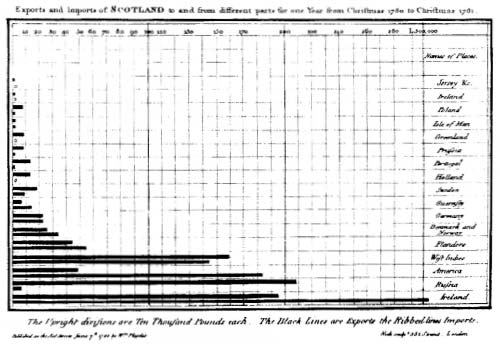
William Playfair. Scottish Exports, 1780.
As I wrote in Week One of Data Viz in 6 Weeks, data visualization today is more about interacting with data than simply representing it. Designing data visualizations, therefore, involves designing user interface and interaction as much as it involves designing the representation.
Traditional tools for data interaction include layers, filter boxes and query lists, amongst other things. They are a great start, but have some weaknesses from a usability standpoint:
- • layer and filter menus force your eye off the visualization. Sometimes query lists make you leave the visualization space entirely to make your selections.
- • as menu items are ticked on or off, the corresponding visualization changes can happen instantaneously, making them difficult to spot, especially if your eyes are still on the menu. This is made worse if the change is subtle or there are multiple views in a dashboard, making it impossible to look everywhere at once. The last thing you want is for your viewer to be checking and unchecking menu items repeatedly, just to try to spot the change in the visualization or the different dashboard windows.
By contrast, direct manipulation is a more hands-on approach to interacting with data. With direct manipulation you interact directly within the data visualization itself rather than via external or peripheral menus and filter lists.
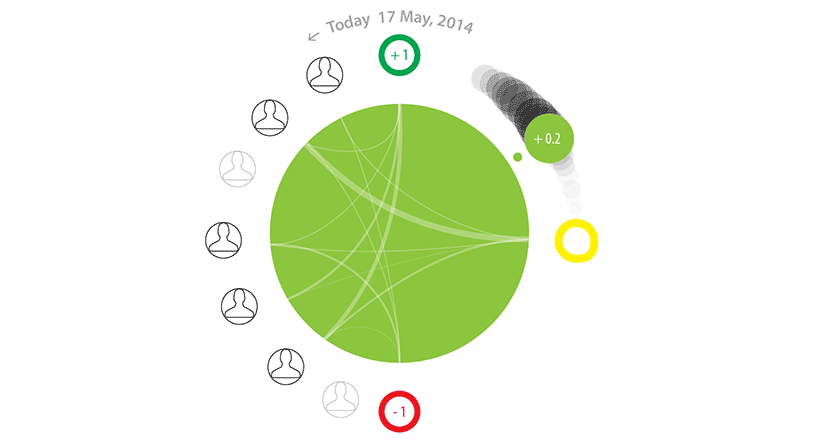
The Brava visualization, above, employs direct manipulation. The large green dot provides an overview of a patient’s condition on a green/yellow/red spectrum. A second smaller dot, the same colour as the first, provides redundant coding for users with colour blindness as well as a means of direct manipulation. First, its position between green at the top and red at the bottom corresponds to its position on the colour spectrum. Second, its number is mapped between +1.0 (green) and -1.0 (red) to reinforce the colour and provide more precision. Additionally, the small dot has a tail which fades into the background, providing context and trajectory information. Here’s where the direct manipulation comes in: the user can move the smaller dot to any point along the tail to go backwards and forwards in time and access the associated health information.
Animated transitions
Animated transitions also help the user understand changes in the data much better than instantaneous changes. Fathom Information Design’s (aka Ben Fry) Powering the Kitchen is a great example of how and why.
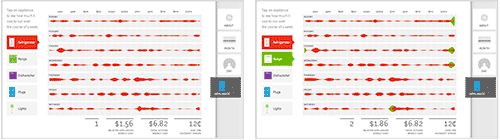
Click on Appliance View from the tabs on the right side of the screen. Then add the Range from the appliance menu on the left side and watch the energy consumption from the oven range, in green, be added to that of the fridge, in red. Being animated, it’s easy to spot, even if your eye has to move from one side of the visualization to the other.
It goes without saying that movement catches the eye. It is one of the strongest preattentive perceptual features mentioned in Week 3 of Data Viz in 6 Weeks.
Bill Buxton wrote that you need to think about designing the transistions between static states (i.e. views, web pages etc.) as you do about designing the static states themselves. The Powering the Kitchen is a great example of that principal in action.
Learning is a full body experience
Because you learn with your hands as much as your eyes and ears, this course is more than a lecture-based Data Viz ‘studies’ course. Each week, students also get their hands dirty using different open source data visualization programs. This week’s was Gephi, a network mapping tool.
Students also formed teams to played a design charrette card game. By drawing one card from each of three piles, teams randomly chose a Viz Type (eg. treemap, block histogram, small multiples etc.), a Design Feature (eg. metaphor, colour/hue, direct manipulation) and a Data Scenario (eg. pollution levels around Pearson Airport, spread of infectious diseases, Alice in Wonderland). Then they had twenty minutes to brainstorm and sketch as many data visualization ideas as possible that incorporated all three (or more). At the end of the charrette, they presented their ideas to the class to be torn to shreds (joking).
Next week
More Data viz design issues
Data scraping tools
DataViz in 6 Weeks is my blog about teaching Introduction to Visual Analytics at OCAD University in Toronto. Comments, follows and shares welcome. #DataVizInSixWeeks
Anne Stevens I am a multidisciplinary designer working in data visualization, interaction design, innovation and critical design. I am particularly interested in non-screen based physical representations of data and tangible user interfaces.
]]>